# Snippets (beta)

{% hint style="info" %}
This feature is available as part of the Pro plan and Enterprise plan. To find out more, [visit our pricing page](https://www.gitbook.com/pricing).
{% endhint %}

In GitBook, you can capture unstructured information using [integrations](https://gitbook.com/docs/~/changes/pfQHJq75QY5xMYvctdXP/integrations), and GitBook AI will turn it into a **snippet** — a structured page of information that’s easy to read and digest. You can also create snippets manually within the app.&#x20;

GitBook will index all of your snippets alongside the rest of your content and can reference them when you or your team [searches for information](https://gitbook.com/docs/~/changes/pfQHJq75QY5xMYvctdXP/content-editor/searching-your-content). You can also merge snippets into existing docs or content to keep everything up to date.

<figure><img src="https://1050631731-files.gitbook.io/~/files/v0/b/gitbook-x-prod.appspot.com/o/spaces%2FNkEGS7hzeqa35sMXQZ4X%2Fuploads%2FbmNaP6Hg7hawOD3nxbhI%2Fsnippets.png?alt=media&#x26;token=59a6d8ae-6ae8-4d03-846d-fae9a835009d" alt=""><figcaption><p>The <strong>Snippets</strong> page holds all of your snippets in one place and makes it easy to connect integrations so you can add more.</p></figcaption></figure>

### Product Demo

{% embed url="<https://www.youtube.com/watch?v=P-ZRw0Yh_Mc>" %}
Snippets Product Demo
{% endembed %}

### Create a snippet

You can create snippets in GitBook in different ways, depending on the tool you’re using or the workspace you’re in.

#### Create a snippet from a third-party tool

You can capture snippets from third-party tools using integrations. Depending on the tool you’re using, you can add snippets in different ways. Find out more about capturing snippets in third-party tools in [the integrations section](https://gitbook.com/docs/~/changes/pfQHJq75QY5xMYvctdXP/integrations).&#x20;

Every snippet you add to your organization will end up in the **Snippets** page, along with information about it — such as its source, author, and when it was created.

#### Create a snippet manually

You can create a snippet manually from the **Snippets** page, by clicking the **Create your own** card. A blank page will appear and you can add any information you’d like.

### Edit a snippet

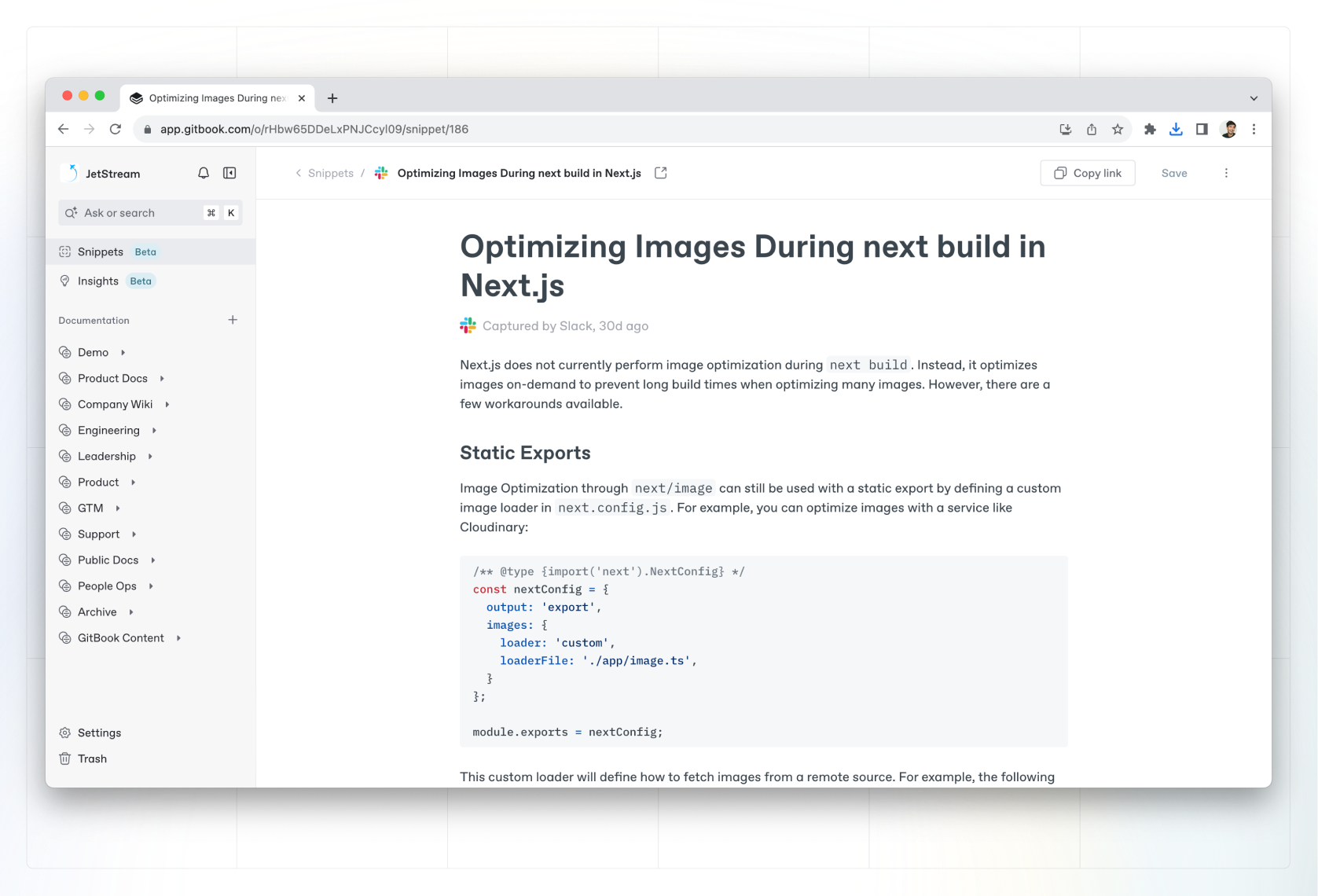
You can edit a snippet you’ve captured by clicking to open it from the **Snippets** page. This will open an editor view, where you can edit any information that might be wrong, or add additional context for things that might be missing.

<figure><img src="https://1050631731-files.gitbook.io/~/files/v0/b/gitbook-x-prod.appspot.com/o/spaces%2FNkEGS7hzeqa35sMXQZ4X%2Fuploads%2FwjNkDj7iLLy2nfH87X3a%2Fedit-snippet.png?alt=media&#x26;token=81d53cda-404c-44a1-adef-d98ebb180f3e" alt=""><figcaption><p>You can edit a snippet directly in the editor by opening it.</p></figcaption></figure>

### Share a snippet

You can share a snippet with others as a direct link to the organization it’s in. When viewing a snippet, you’ll find the **Copy link** button in the top-right corner.

### Convert a snippet to a page

You can convert a snippet to a full page within your documentation. To do this, open a snippet and choose **Convert to page** in the top-right corner.

You’ll be prompted to choose a space for your page — you can use the drop-down menu to search for a space or scroll. When you select a space, GitBook will add the content of the snippet as a new page, or [open a change request](https://gitbook.com/docs/~/changes/pfQHJq75QY5xMYvctdXP/content-editor/editor/change-requests) if you select a space [with locked live edits](https://gitbook.com/docs/~/changes/pfQHJq75QY5xMYvctdXP/content-editor/editor/live-edits).

{% hint style="info" %}
**Note:** When you convert a snippet to the page, GitBook will automatically archive the snippet. If you’ve linked to the snippet using [an inline link](https://gitbook.com/docs/~/changes/pfQHJq75QY5xMYvctdXP/content-editor/editing-content/inline#links) or [a snippet block](https://gitbook.com/docs/~/changes/pfQHJq75QY5xMYvctdXP/content-editor/blocks/snippets), the links will still work but will take readers to the original snippet, not the new page.
{% endhint %}

### Delete a snippet

To delete a snippet, open it by clicking it in the **Snippets** page, then click the **Discard** option from the Action menu <img src="https://1050631731-files.gitbook.io/~/files/v0/b/gitbook-x-prod.appspot.com/o/spaces%2FNkEGS7hzeqa35sMXQZ4X%2Fuploads%2FIfd7ka3cralqGUz0Z41B%2FFrame%201.png?alt=media&#x26;token=2cddf304-8c59-4623-b7c2-78b494275308" alt="Three vertical dots" data-size="line"> in the upper right corner.

{% hint style="warning" %}
A snippet is permanently deleted when you discard it.
{% endhint %}