# Enabling GitLab Sync
### 1. Get started
In the space you want to sync with your GitLab repo, head to the space menu in the top right, and select **Synchronize with Git**. From the provider list, select **GitLab Sync**, and click **Configure**.
Git Sync setup screen
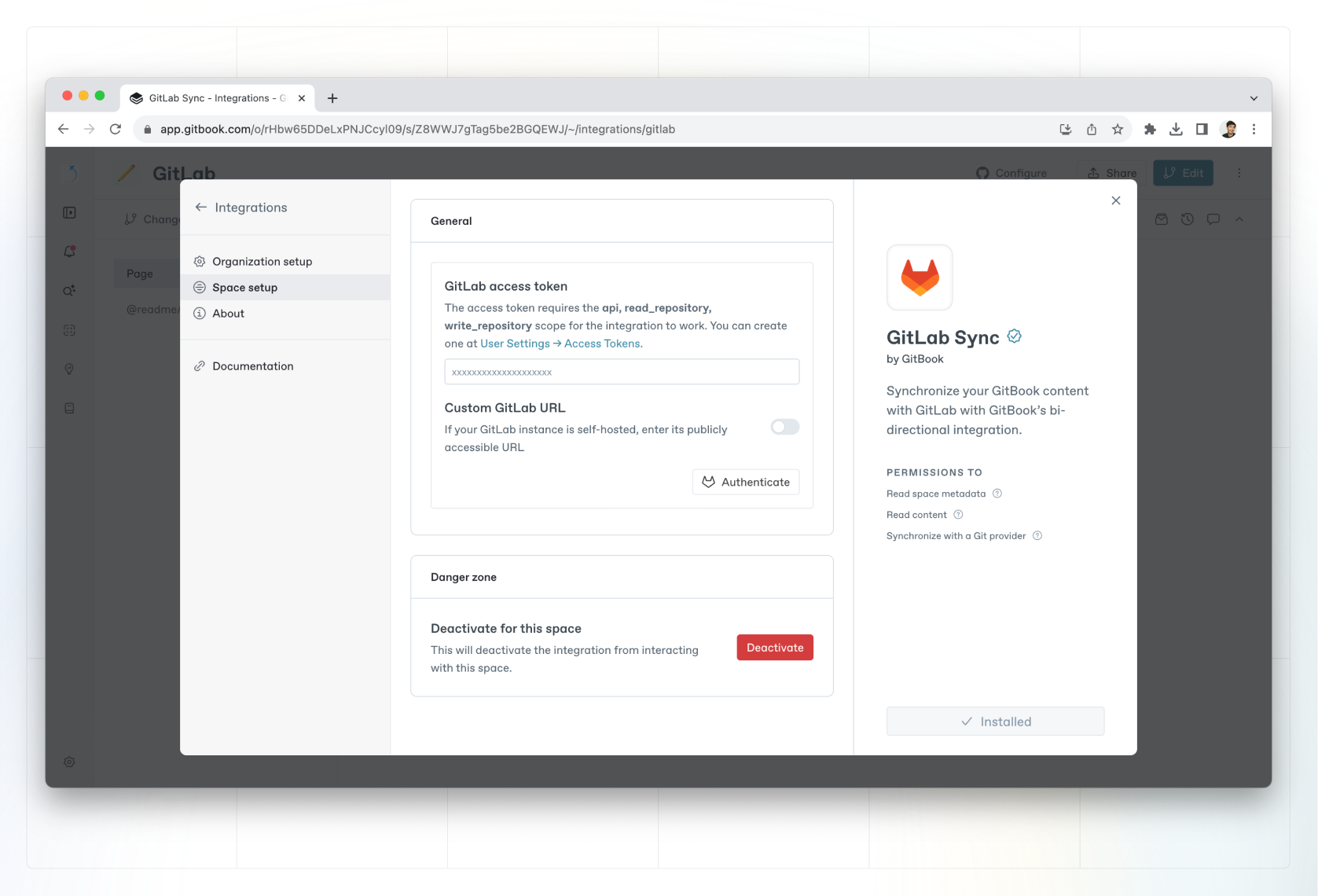
### 2. Generate and enter your API token
You can generate an API token in your GitLab user settings.
Ensure that you enable the following access for your token:
* `api`
* `read_repository`
* `write_repository`
GitLab setup screen
Then you can paste the token into the API access token field when configuring your GitLab integration.
### 3. Select a repository and branch
Select the repository you want to keep in sync with your GitBook content.
{% hint style="info" %}
**Can’t see your repository?** Ensure you’ve set the correct permissions when creating your API token.
{% endhint %}
Once you’ve selected the correct repository, choose which branch you want commits to be pushed to and synced from.
{% hint style="info" %}
For many GitLab repositories, the `main` branch might be automatically set to protected. If this is the case, we recommend adding a specific branch to sync your content between. You can then merge this into `main` and keep the protection in place.
{% endhint %}
### 4. Perform an initial sync
When syncing for the first time, you’ll have the option to sync in one of two directions:
1. Git**Book** -> Git**Lab** will sync your space’s content **to** the selected branch. This is great if you’re starting from an empty repository and want to get your GitBook content in quickly.
2. Git**Lab** -> Git**Book** will sync your space’s content **from** the selected branch. This is great if you have existing markdown content in a repository and want to bring it into GitBook.
### 5. Write and commit!
You’re good to go. You’ll notice that if your space was in [live edit](https://gitbook.com/docs/~/changes/pfQHJq75QY5xMYvctdXP/content-editor/editor/live-edits) mode, live edits are now locked. This allows GitBook to reliably sync content to your repository when someone in your team merges a[ change request](https://gitbook.com/docs/~/changes/pfQHJq75QY5xMYvctdXP/content-editor/editor/change-requests) in GitBook.
When you edit on GitBook, every change request merge will result in a commit to your selected GitLab branch.
When you commit to GitLab, every commit will be synced to your GitBook space as a history commit.