# Navigation

GitBook is split into different sections to make it easier to organize and manage the content you create. Read on to learn more about these sections, and how they help you build an organized and easily searchable content structure.

### The sidebar

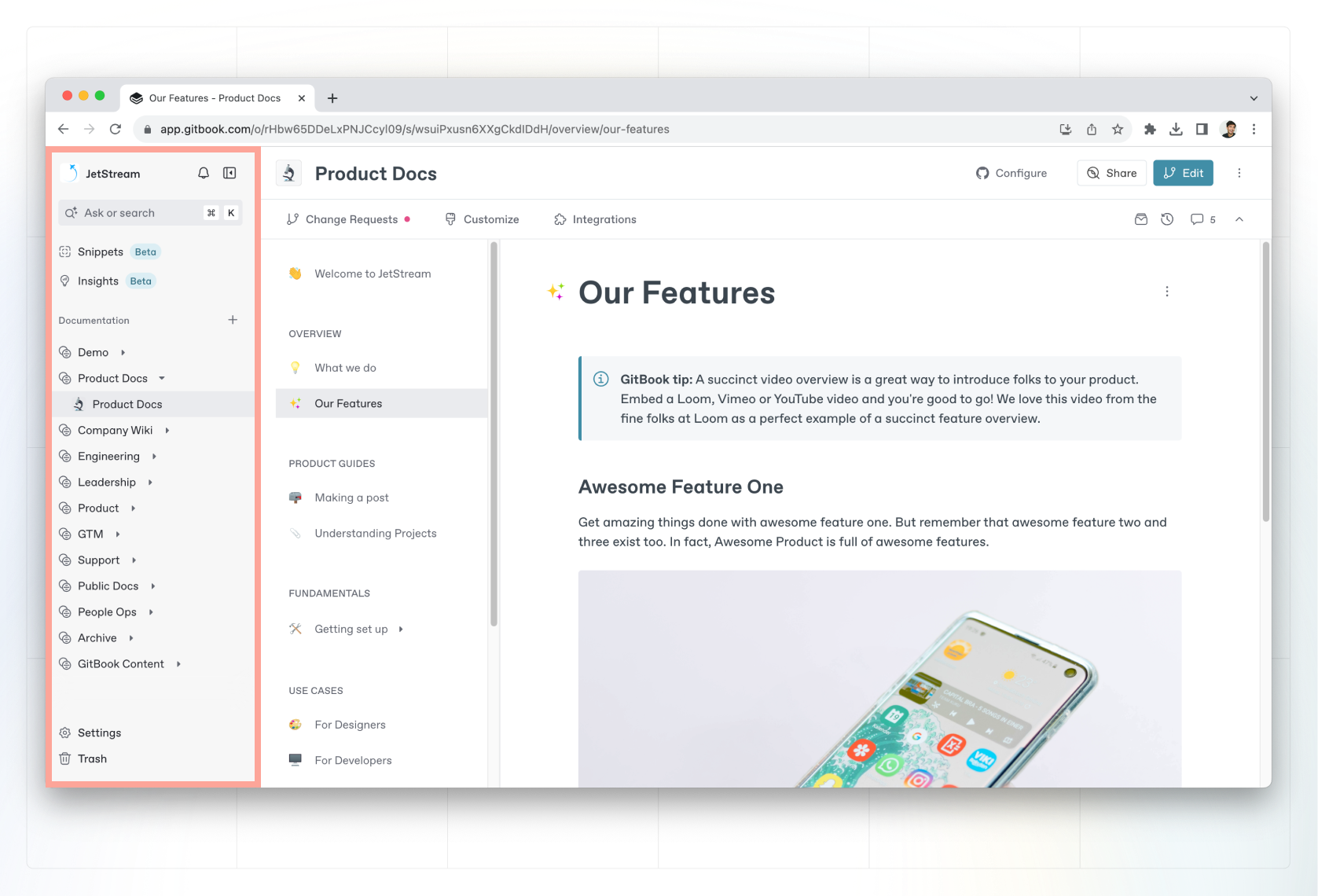
<figure><img src="https://1050631731-files.gitbook.io/~/files/v0/b/gitbook-x-prod.appspot.com/o/spaces%2FNkEGS7hzeqa35sMXQZ4X%2Fuploads%2FR3R4ukPaJqRxZwgeDONh%2Fsidebar.png?alt=media&#x26;token=236a0bc2-b7a9-4843-8ca8-9cff9b220d8b" alt=""><figcaption><p>The GitBook sidebar holds all of your documentation, as well as notifications, the search bar, snippets and more.</p></figcaption></figure>

The sidebar allows you to see and overview of your GitBook organization at a glance. The sidebar contains:

* **Home**\
  The Home page allows you to see everything your team is working on at a glance. View open change requests, discussions and comments, recent page edits and more.
* **Organization switcher**\
  If you’re a part of multiple organizations, you can see and switch between them here. You can also create a new organization from this menu.
* **Notifications**\
  When you’re tagged in a comment or conversation, or when there is important activity in a space you’re working in, you’ll get a [notification](https://gitbook.com/docs/~/changes/pfQHJq75QY5xMYvctdXP/collaboration/notifications) to show you what’s new.
* **Ask or search**\
  Powered by [GitBook AI](https://gitbook.com/docs/~/changes/pfQHJq75QY5xMYvctdXP/content-editor/searching-your-content/gitbook-ai), you can ask questions in natural language, or search through the different spaces and content in your organization.
* **Integrations**\
  GitBook [integrations](https://github.com/GitbookIO/public-docs/blob/main/content-editor/editor/broken-reference/README.md) supercharge your content, allowing you to embed more into your pages, or add information to your knowledge base from other apps. Head to the [integration listing page ](https://gitbook.com/docs/~/changes/pfQHJq75QY5xMYvctdXP/integrations/third-party-integrations)to see all the available integrations.
* **Snippets**\
  With [snippets](https://gitbook.com/docs/~/changes/pfQHJq75QY5xMYvctdXP/snippets-and-insights/snippets-beta), you can capture complex information from third-party tools. GitBook AI extracts that valuable knowledge within, and documents it for you in seconds.
* **Insights**\
  [Insights](https://gitbook.com/docs/~/changes/pfQHJq75QY5xMYvctdXP/published-documentation/insights) allow you to have a birds-eye view of all of the content you have in your organization.
* **Documentation**\
  The documentation section is where you’ll find the [collections](https://gitbook.com/docs/~/changes/pfQHJq75QY5xMYvctdXP/content-editor/editor/content-structure/what-is-a-collection) and [spaces](https://gitbook.com/docs/~/changes/pfQHJq75QY5xMYvctdXP/content-editor/editor/content-structure/what-is-a-space) you create when adding more content. Head to our [content structure](https://gitbook.com/docs/~/changes/pfQHJq75QY5xMYvctdXP/content-editor/editor/content-structure) section to find out more.
* **Settings**\
  You’ll find [personal settings](https://gitbook.com/docs/~/changes/pfQHJq75QY5xMYvctdXP/account-management/account-settings) and [organization settings](https://gitbook.com/docs/~/changes/pfQHJq75QY5xMYvctdXP/account-management/organization-management) at the bottom of the sidebar. Here, you can also toggle light/dark mode, or get help from our support team if needed.
* **Trash**\
  Deleted spaces appear in the trash. You can restore them for up to seven days — after that, they’re permanently deleted.

### Table of contents

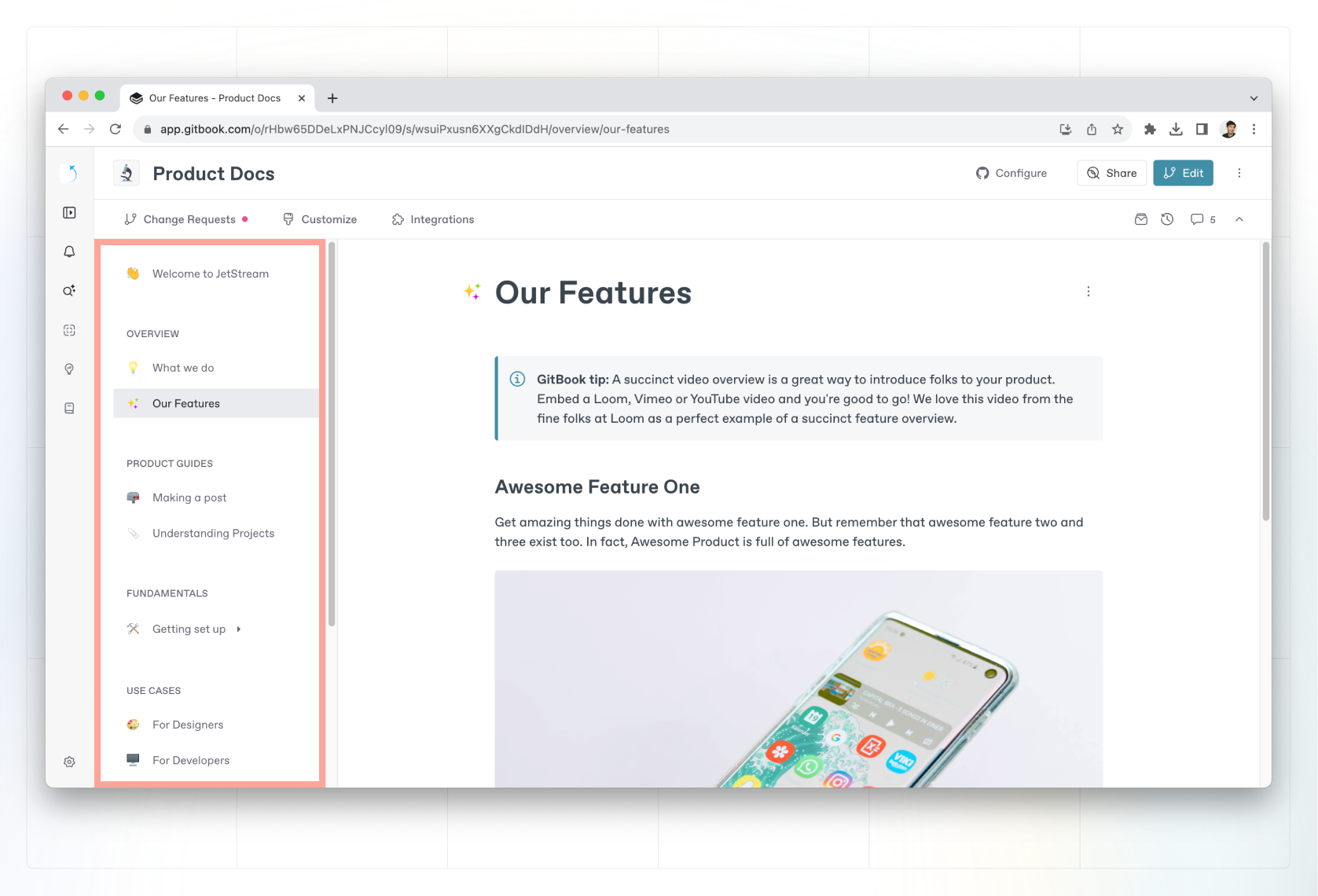
<figure><img src="https://1050631731-files.gitbook.io/~/files/v0/b/gitbook-x-prod.appspot.com/o/spaces%2FNkEGS7hzeqa35sMXQZ4X%2Fuploads%2FK4CvgQblc4xm4417kANp%2Ftable-of-contents.png?alt=media&#x26;token=843a5df8-9806-4b42-bded-be2b5878c125" alt=""><figcaption><p>The table of contents lists all the pages and links in your selected space.</p></figcaption></figure>

The table of contents is a list of [pages, links, and groups](https://gitbook.com/docs/~/changes/pfQHJq75QY5xMYvctdXP/content-editor/content-structure/content-in-a-space#organizing-your-content) that make up a space. You’ll find it to the right of the sidebar. It’s specific to the space you’re currently viewing.

From the table of contents you can:

* create new [pages](#pages) and subpages
* create [page groups](#groups)
* add [external links](#external-links)
* [import external docs](https://gitbook.com/docs/~/changes/pfQHJq75QY5xMYvctdXP/content-editor/import) like websites or Markdown files
* access [the Actions menu](#the-actions-menu) <img src="https://1050631731-files.gitbook.io/~/files/v0/b/gitbook-x-prod.appspot.com/o/spaces%2FNkEGS7hzeqa35sMXQZ4X%2Fuploads%2FIfd7ka3cralqGUz0Z41B%2FFrame%201.png?alt=media&#x26;token=2cddf304-8c59-4623-b7c2-78b494275308" alt="Three vertical dots" data-size="line"> for individual pages.

If you want to give more focus to the content of your page, you can temporarily hide the table of contents by hovering your cursor next to it and clicking the **Hide** button <img src="https://1050631731-files.gitbook.io/~/files/v0/b/gitbook-x-prod.appspot.com/o/spaces%2FNkEGS7hzeqa35sMXQZ4X%2Fuploads%2Fb2lEOR9O8tNV9SGrnmqh%2FHide%20button.png?alt=media&#x26;token=fd8caf5c-6aee-45a7-b6e1-9702777bf50a" alt="The &#x27;hide&#x27; icon" data-size="line"> that appears. To make it appear again, hover your cursor near the edge of the page and click the **Show** button <img src="https://1050631731-files.gitbook.io/~/files/v0/b/gitbook-x-prod.appspot.com/o/spaces%2FNkEGS7hzeqa35sMXQZ4X%2Fuploads%2FU2rwAgijlZvBrTLwczIe%2FShow%20button.png?alt=media&#x26;token=5c259371-a822-4546-8f8c-b18bf81c5fcb" alt="The &#x27;show&#x27; icon" data-size="line">.


### Space header & sub-navigation

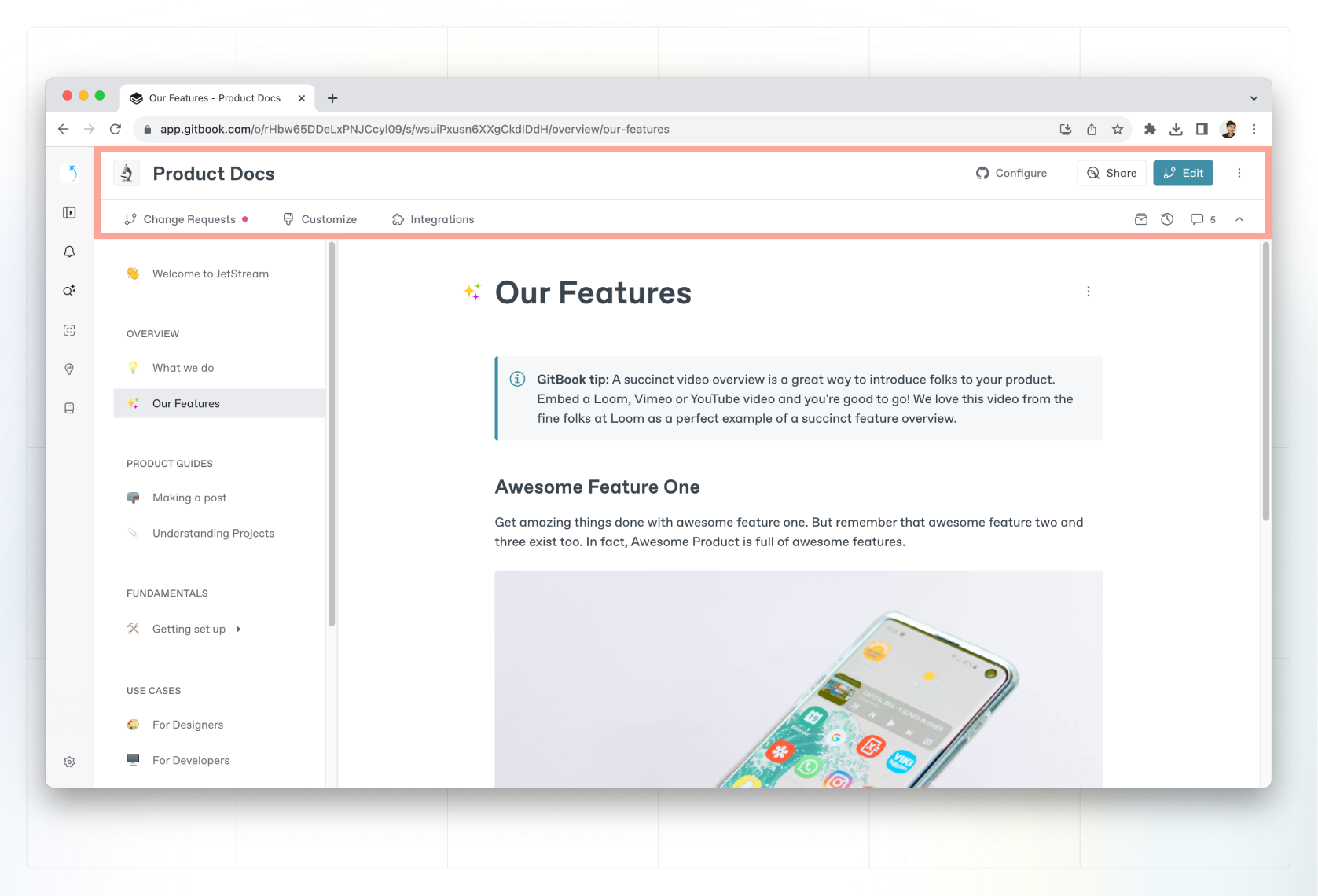
<figure><img src="https://1050631731-files.gitbook.io/~/files/v0/b/gitbook-x-prod.appspot.com/o/spaces%2FNkEGS7hzeqa35sMXQZ4X%2Fuploads%2F7d7tQ13O7O1lAp1lcZMM%2Fheader.png?alt=media&#x26;token=22c65895-414c-4ee2-97ec-c5c9a23b6385" alt=""><figcaption><p>The space header sits at the top of the editor, and offers options that apply to the whole space.</p></figcaption></figure>

The space header contains information about the space you’re currently viewing. It lets you do things like [publish and share](https://gitbook.com/docs/~/changes/pfQHJq75QY5xMYvctdXP/published-documentation/overview) your space, configure [GitHub or GitLab sync](https://gitbook.com/docs/~/changes/pfQHJq75QY5xMYvctdXP/integrations/git-sync), and more.

{% hint style="info" %}
The space header & sub-navigation may look different depending on the mode you’re currently in. See [change requests](https://gitbook.com/docs/~/changes/pfQHJq75QY5xMYvctdXP/content-editor/editor/change-requests) for more info.
{% endhint %}

#### Space header

The space header appears at the top of GitBook when viewing a space. It includes:

* **The space emoji**\
  You can choose an emoji for your space, to help you easily identify it in the sidebar.
* **The space name**\
  The name of the space that will appear in the sidebar, and your documentation if and when you choose to publish it.
* **Collaborators**\
  The avatar of anyone else who’s currently viewing a page in your space, with colored circles to show their cursor color. Click an avatar to jump to the page they’re currently viewing.
* **Git Sync configuration**\
  The [GitHub and GitLab Sync](https://gitbook.com/docs/~/changes/pfQHJq75QY5xMYvctdXP/integrations/git-sync) configuration for your space.
* **The Share menu**\
  Allows you to publish and share your space. You can also invite others to [collaborate](https://github.com/GitbookIO/public-docs/blob/main/content-editor/editor/broken-reference/README.md) through this menu.
* **The edit button**\
  If your space is published, or someone has locked[ live edits](https://gitbook.com/docs/~/changes/pfQHJq75QY5xMYvctdXP/content-editor/editor/live-edits), the **Edit** button will appear in the space header. It lets you start a new [change request](https://gitbook.com/docs/~/changes/pfQHJq75QY5xMYvctdXP/content-editor/editor/change-requests) to edit content.
* **Actions menu** <img src="https://1050631731-files.gitbook.io/~/files/v0/b/gitbook-x-prod.appspot.com/o/spaces%2FNkEGS7hzeqa35sMXQZ4X%2Fuploads%2FIfd7ka3cralqGUz0Z41B%2FFrame%201.png?alt=media&#x26;token=2cddf304-8c59-4623-b7c2-78b494275308" alt="" data-size="line">\
  Offers a list of actions for your space. Similar to [page actions](#the-actions-menu), the available actions for a space will differ depending on the mode you’re currently in.

#### Space sub-navigation

The space sub-navigation is located directly beneath the space header, and lets you collaborate with others on your space, customize it’s look, and more. It includes:

* **Change requests**\
  Create, update, and delete [change requests](https://gitbook.com/docs/~/changes/pfQHJq75QY5xMYvctdXP/content-editor/editor/change-requests) in your space.
* **Customize**\
  [Customize](https://gitbook.com/docs/~/changes/pfQHJq75QY5xMYvctdXP/published-documentation/customization/space-customization) the look and feel of your space, including it’s colors, favicon, and more.
* **Integrations**\
  Add [integrations](https://github.com/GitbookIO/public-docs/blob/main/content-editor/editor/broken-reference/README.md) to your space.
* **File manager**\
  Upload and manage files in your space.
* **History**\
  View your space’s [version history](https://gitbook.com/docs/~/changes/pfQHJq75QY5xMYvctdXP/content-editor/activity-history), and rollback to a previous version.
* **Comments**\
  See the [comments and discussions](https://gitbook.com/docs/~/changes/pfQHJq75QY5xMYvctdXP/collaboration/comments-discussion) you and your team have had about the space content.

### Page title and description <a href="#page-title" id="page-title"></a>
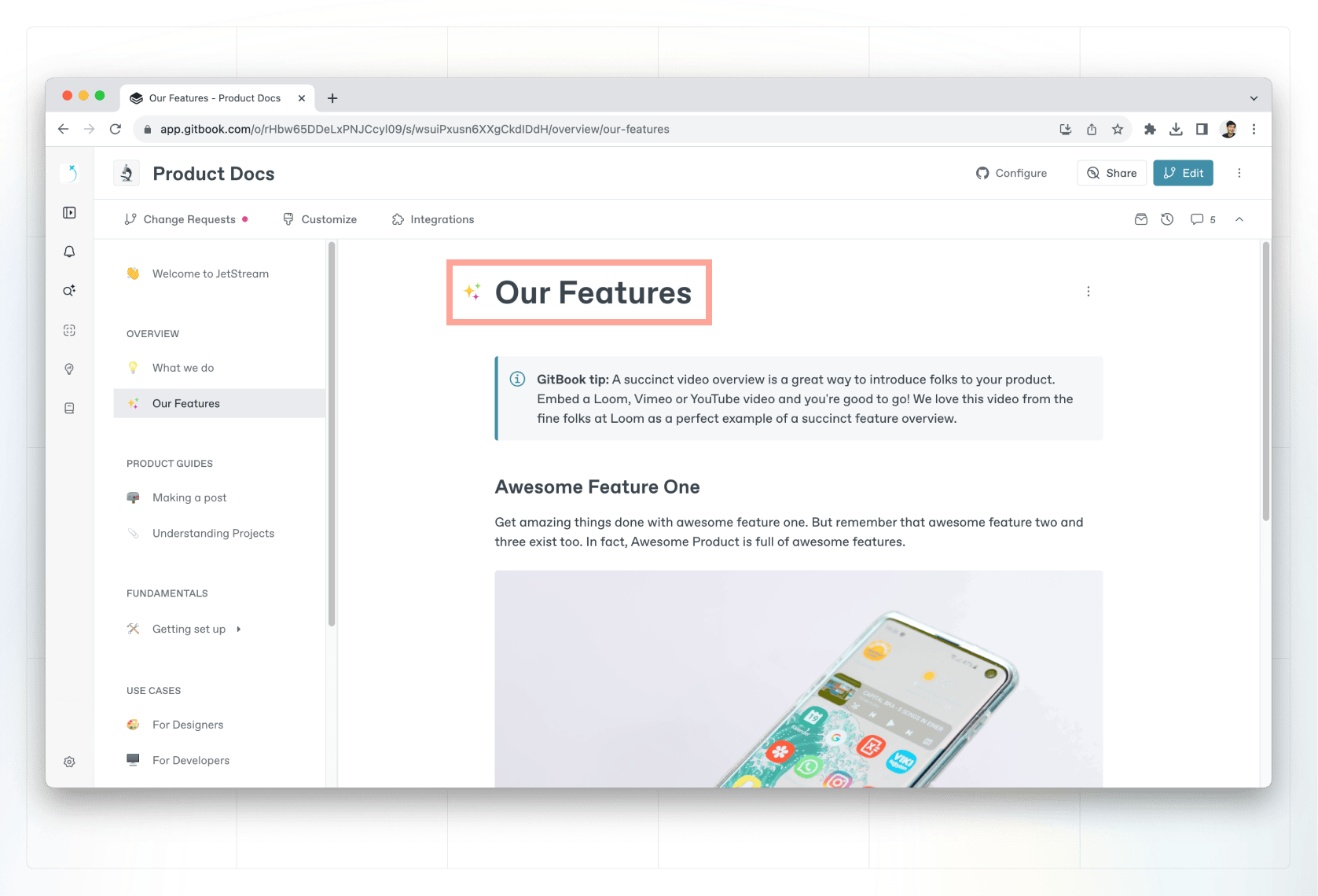
<figure><img src="https://1050631731-files.gitbook.io/~/files/v0/b/gitbook-x-prod.appspot.com/o/spaces%2FNkEGS7hzeqa35sMXQZ4X%2Fuploads%2Fim483bxy9O2MlZ0Y7irT%2Ftitle.png?alt=media&#x26;token=7b6d9bf1-fc69-4187-bcbe-53753bae35e9" alt=""><figcaption><p>The page title appears at the top of the page. You can set an emoji for a page by clicking the icon to the left of the title.</p></figcaption></figure>

At the top of each page you can set a **title**, add an optional **emoji**, and write a **description**. The title you use will appear in the table of contents, and forms your page’s URL slug when published.

Your page description can be a maximum of 200 characters long, and will act as the preview text for your page in search engines.

{% hint style="info" %}
You can change the URL slug for a page by choosing **Page Actions** <img src="https://1050631731-files.gitbook.io/~/files/v0/b/gitbook-x-prod.appspot.com/o/spaces%2FNkEGS7hzeqa35sMXQZ4X%2Fuploads%2FIfd7ka3cralqGUz0Z41B%2FFrame%201.png?alt=media&#x26;token=2cddf304-8c59-4623-b7c2-78b494275308" alt="Actions menu.png" data-size="line"> > **Rename**. Find out more about [Page Actions](#page-options) below.
{% endhint %}

### Content editor
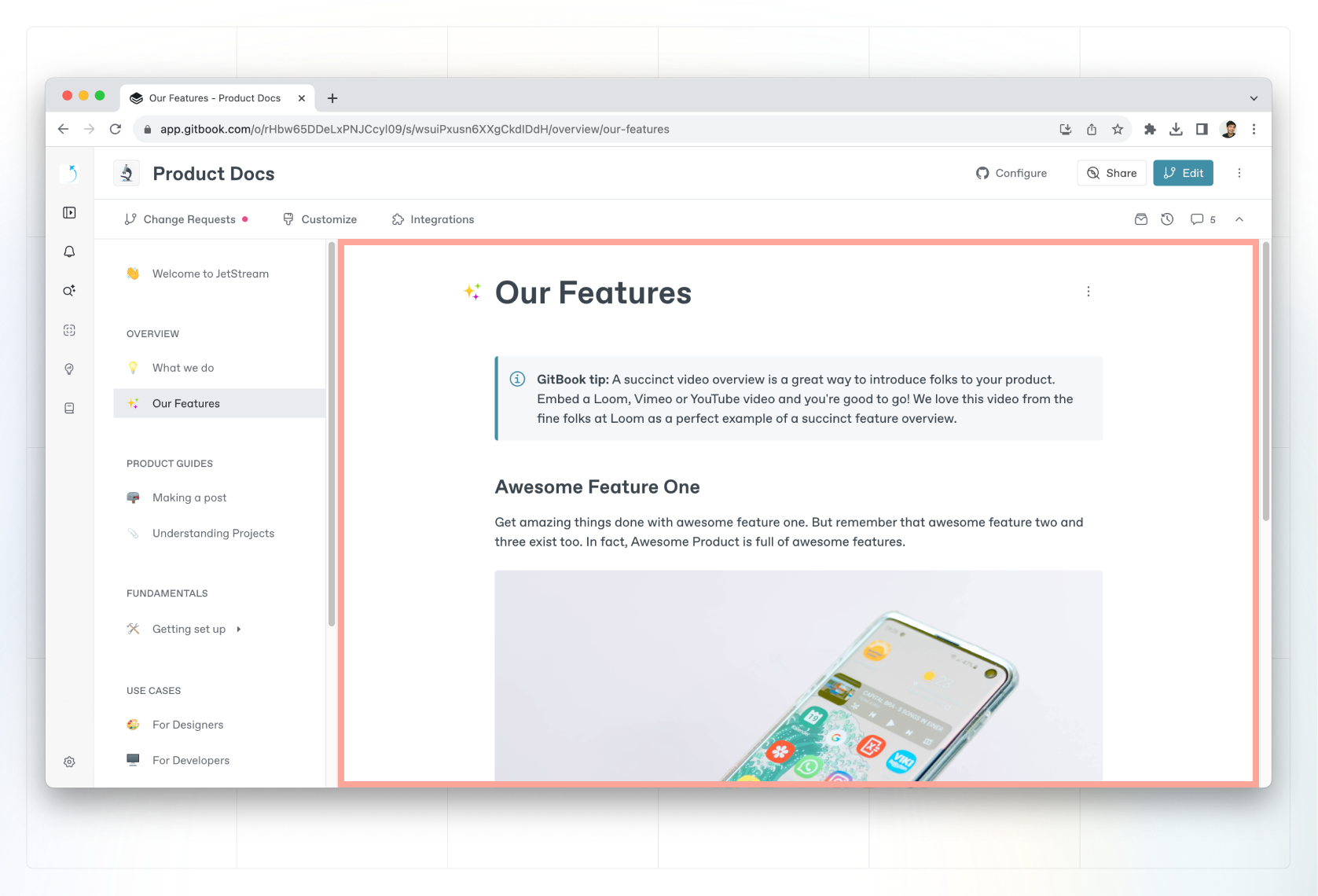
<figure><img src="https://1050631731-files.gitbook.io/~/files/v0/b/gitbook-x-prod.appspot.com/o/spaces%2FNkEGS7hzeqa35sMXQZ4X%2Fuploads%2FsNAgAXdd5moBuHMimjYI%2Feditor.png?alt=media&#x26;token=462425df-6bd6-4c06-bad0-01662c1375f1" alt=""><figcaption><p>GitBook’s block-based editor offers plenty of flexibility to add and reorder content, or embed rich content like code blocks and integration blocks.</p></figcaption></figure>

The editor is where you can write or insert content in GitBook.

In addition to the multiple [content blocks](https://gitbook.com/docs/~/changes/pfQHJq75QY5xMYvctdXP/content-editor/blocks) you can insert, you can also [embed content](https://gitbook.com/docs/~/changes/pfQHJq75QY5xMYvctdXP/content-editor/blocks/embed-a-url) from other places, such as [integrations](https://gitbook.com/docs/~/changes/pfQHJq75QY5xMYvctdXP/integrations/third-party-integrations).

### The Actions menu

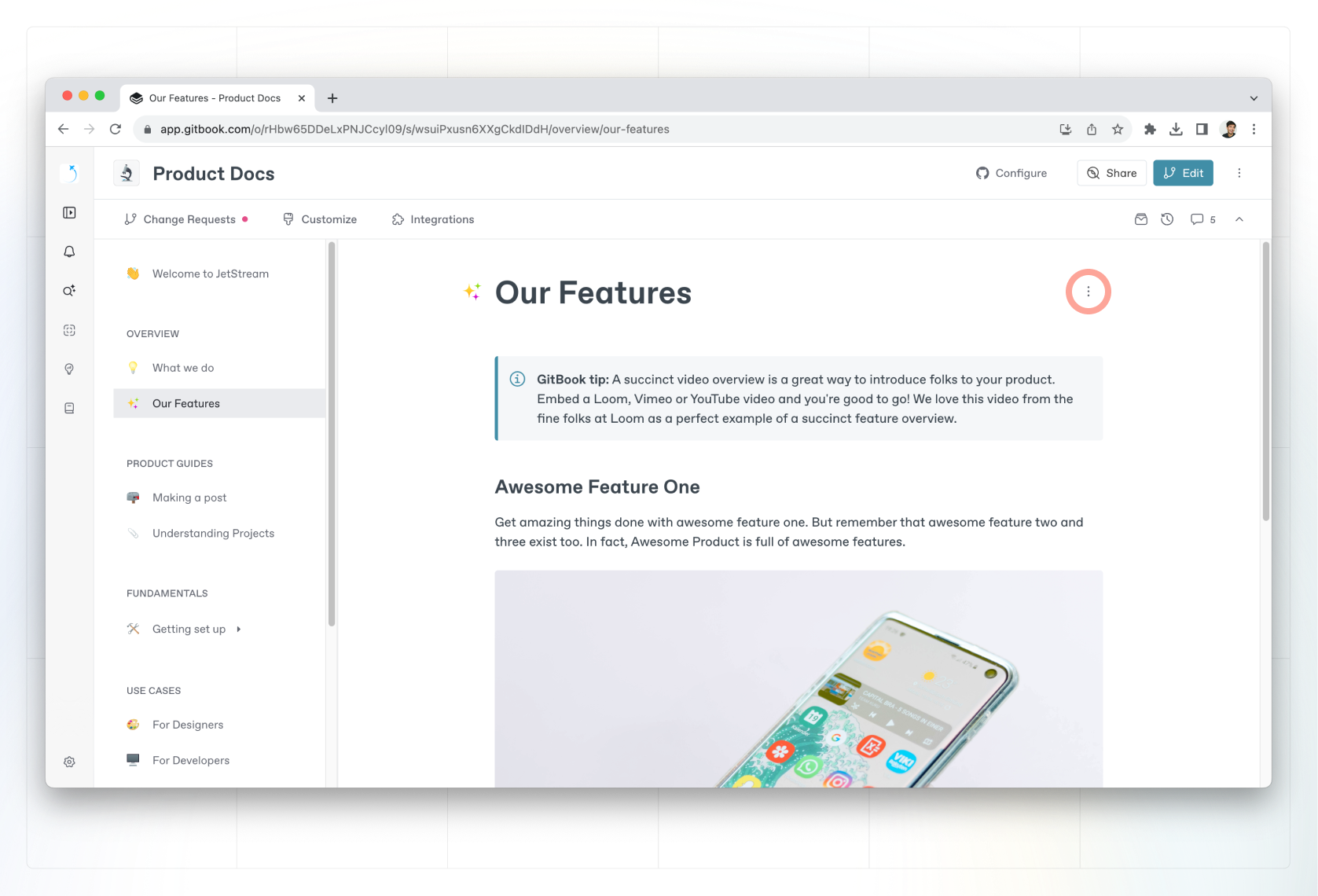
<figure><img src="https://1050631731-files.gitbook.io/~/files/v0/b/gitbook-x-prod.appspot.com/o/spaces%2FNkEGS7hzeqa35sMXQZ4X%2Fuploads%2FfXrnX9EXPcP0u7oXfpus%2Faction-menu.png?alt=media&#x26;token=dd9e4392-d092-4c14-8e5c-a042d213dcf2" alt=""><figcaption><p>In the page’s Actions menu, you can carry out actions that apply to the entire page.</p></figcaption></figure>

The page’s Actions menu <img src="https://1050631731-files.gitbook.io/~/files/v0/b/gitbook-x-prod.appspot.com/o/spaces%2FNkEGS7hzeqa35sMXQZ4X%2Fuploads%2FIfd7ka3cralqGUz0Z41B%2FFrame%201.png?alt=media&#x26;token=2cddf304-8c59-4623-b7c2-78b494275308" alt="Three vertical dots" data-size="line"> allows you to do things like duplicate, rename or delete your page.

You can open the Actions menu using the <img src="https://1050631731-files.gitbook.io/~/files/v0/b/gitbook-x-prod.appspot.com/o/spaces%2FNkEGS7hzeqa35sMXQZ4X%2Fuploads%2FIfd7ka3cralqGUz0Z41B%2FFrame%201.png?alt=media&#x26;token=2cddf304-8c59-4623-b7c2-78b494275308" alt="three vertical dots" data-size="line"> icon that appears when hovering over your page in the sidebar, or from the icon next to the page title.

{% hint style="info" %}
The type of actions available will depend on whether you’re in live editing mode, a change request, or in a space with [locked edits](https://gitbook.com/docs/~/changes/pfQHJq75QY5xMYvctdXP/content-editor/editor/live-edits).
{% endhint %}

### Page options
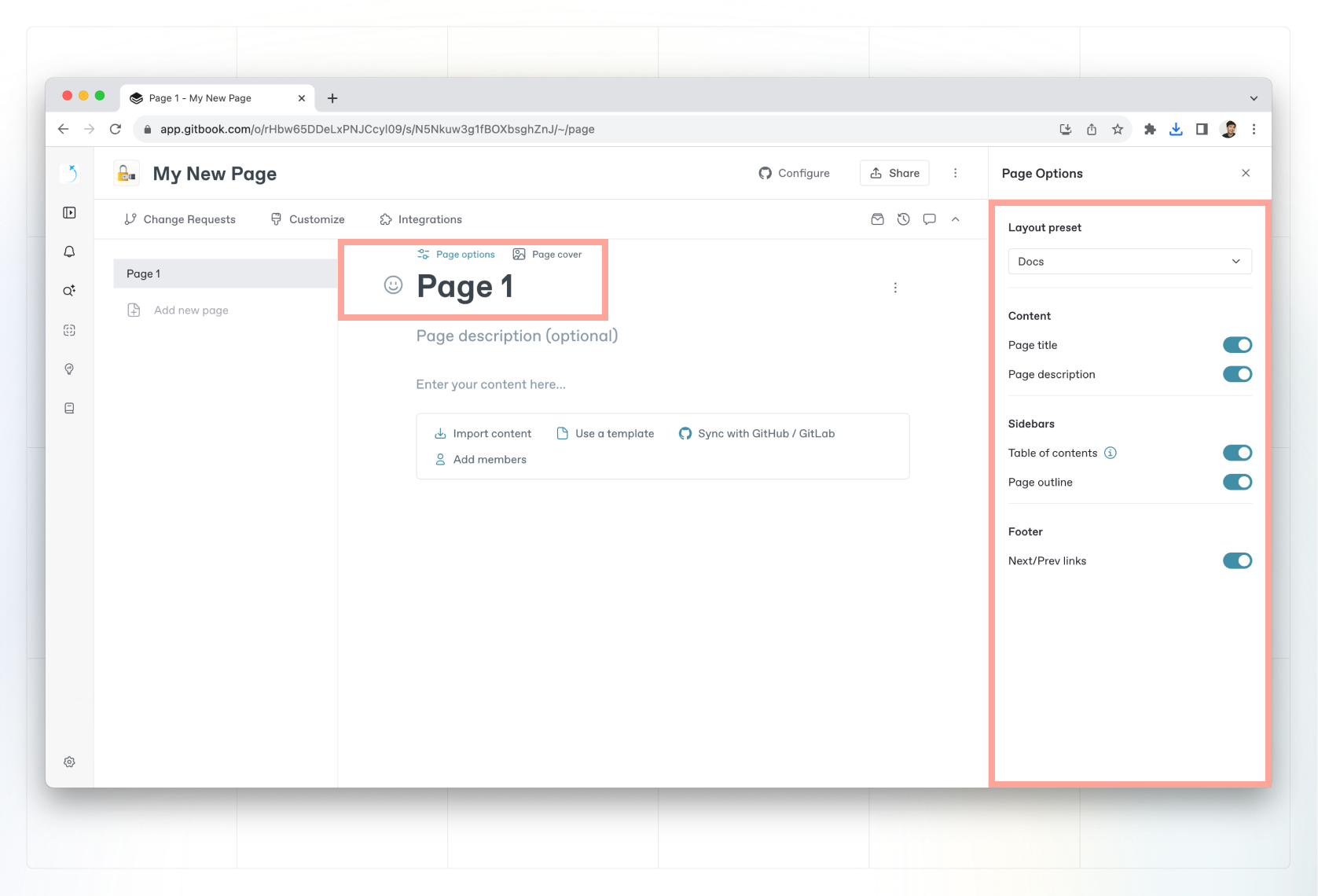
<figure><img src="https://1050631731-files.gitbook.io/~/files/v0/b/gitbook-x-prod.appspot.com/o/spaces%2FNkEGS7hzeqa35sMXQZ4X%2Fuploads%2FnbLLv5OXST1QM5mCOQ7o%2Foptions-menu.png?alt=media&#x26;token=578bbd01-554f-4c2a-99ed-ef5bd72d6454" alt=""><figcaption><p>The <strong>Page options</strong> side panel offers customization options for your documentation and navigation.</p></figcaption></figure>

With [page options](https://gitbook.com/docs/~/changes/pfQHJq75QY5xMYvctdXP/published-documentation/customization/page-layouts), you to customize your documentation layout and navigation. You can only access page options if you’re in an editing mode.

You can open the **Page options** side panel by opening the page’s **Action menu** <img src="https://1050631731-files.gitbook.io/~/files/v0/b/gitbook-x-prod.appspot.com/o/spaces%2FNkEGS7hzeqa35sMXQZ4X%2Fuploads%2FIfd7ka3cralqGUz0Z41B%2FFrame%201.png?alt=media&#x26;token=2cddf304-8c59-4623-b7c2-78b494275308" alt="Three vertical dots" data-size="line"> and choosing **Options**, or by hovering over the main title of the page and clicking **Page options** when it appears.

{% hint style="info" %}
Certain changes, such as disabling the table of content, only apply to published documentation and may not be visible in the editor.
{% endhint %}

### Page outline
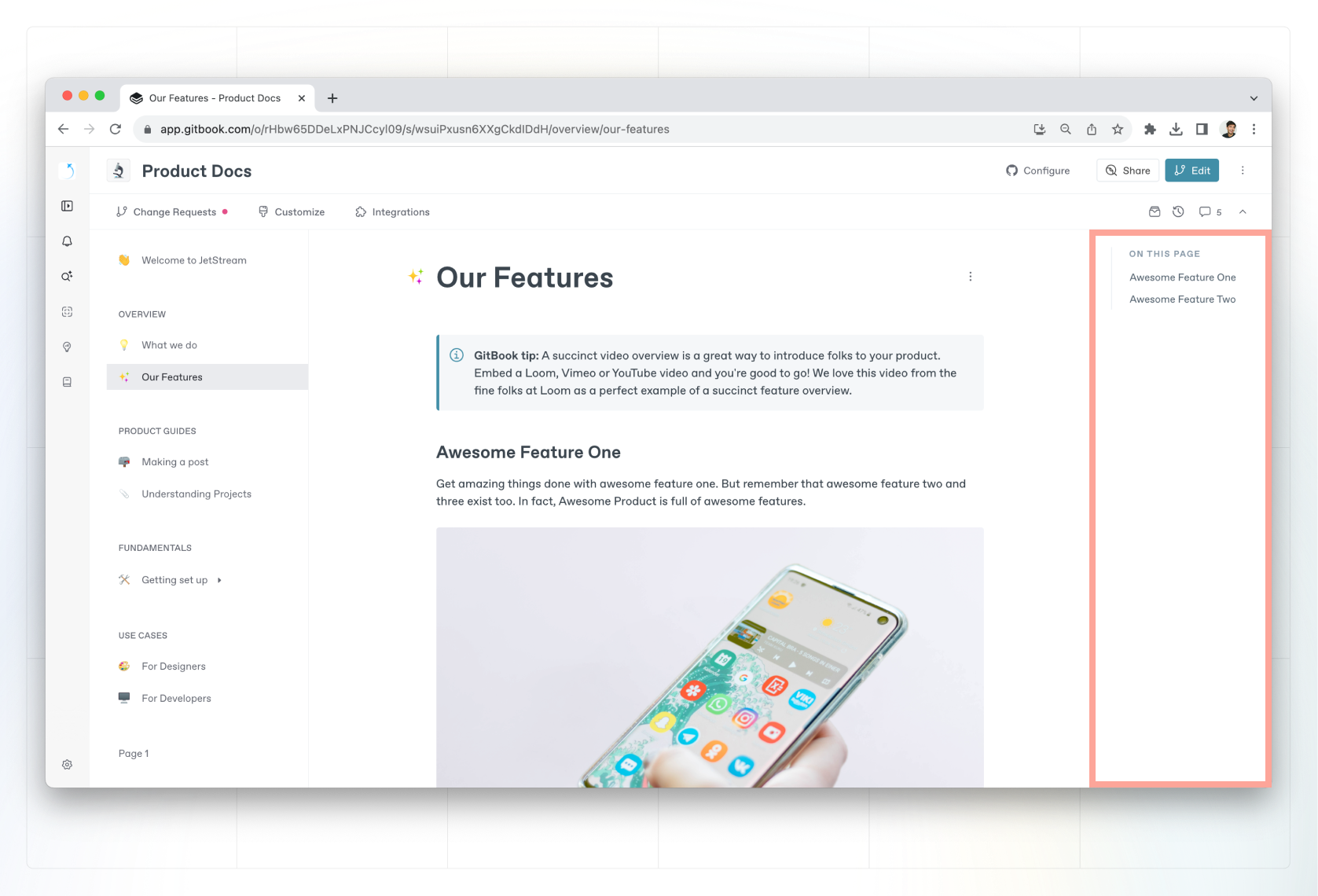
<figure><img src="https://1050631731-files.gitbook.io/~/files/v0/b/gitbook-x-prod.appspot.com/o/spaces%2FNkEGS7hzeqa35sMXQZ4X%2Fuploads%2F1DZa8yoCtBg69IuondKp%2Fpage-outline.png?alt=media&#x26;token=71689f1e-dd82-44b6-b1ae-bff6d2704226" alt=""><figcaption><p>The page outline shows H1 and H2 headings, allowing you to quickly jump to a specific section on an individual page.</p></figcaption></figure>

The **page outline** sits on the right-hand side of the editor, and makes it easy to jump directly to the section of the page you’re looking for.

Any [Heading 1 or Heading 2 blocks](https://gitbook.com/docs/~/changes/pfQHJq75QY5xMYvctdXP/content-editor/blocks/heading) you add to the page will appear in the page outline listed here.

The page outline will appear in your published site, too. You can toggle it on or off in the [**Page options**](#page-options) side panel.

{% hint style="info" %}
If you can’t see the right-hand column of the app, it may be because your browser window is less than 1430 pixels wide. Your browser window needs to be at least 1430 pixels wide to see and use the page outline.
{% endhint %}