# Pages

A page in GitBook is the place where you add, edit and embed content. Pages always live inside a [space](https://gitbook.com/docs/~/changes/pfQHJq75QY5xMYvctdXP/content-editor/editor/content-structure/what-is-a-space), allowing you to group up related content and create different sections for the topics or areas you’re covering.

### Table of contents

You can create as many pages as you need in a space. They’re all visible on the left side of your screen in your space’s [table of contents](https://gitbook.com/docs/~/changes/pfQHJq75QY5xMYvctdXP/content-editor/navigation#table-of-contents).

### Organizing your content

There are three types of pages you can add:

#### Pages

A page has a title, and optional description, and an area where you can write and add any kind of content.‌

You can nest pages by dragging and dropping a page below an other in the table of contents. Doing this creates a subpage.

{% hint style="info" %}
**Tip:** There’s no limit to page nesting, but we’d recommend you avoid more than three levels of nesting to avoid an overly-complex navigation.
{% endhint %}

When you change the title of a page, the page’s slug (the part at the very end of the URL, e.g. `/hello-world`) will also change — unless you’ve manually set the page’s slug previously.

You can change the title and the slug of a page at any time by clicking opening the page’s **Action menu** <img src="https://1050631731-files.gitbook.io/~/files/v0/b/gitbook-x-prod.appspot.com/o/spaces%2FNkEGS7hzeqa35sMXQZ4X%2Fuploads%2FIfd7ka3cralqGUz0Z41B%2FFrame%201.png?alt=media&#x26;token=2cddf304-8c59-4623-b7c2-78b494275308" alt="Three vertical dots" data-size="line">  and choosing **Rename**.

#### Page groups

Page groups make it easy to bring pages together into sections that cover related content.

Page groups can only live at the **top level** of the [table of contents](https://gitbook.com/docs/~/changes/pfQHJq75QY5xMYvctdXP/content-editor/navigation#table-of-contents). You cannot nest page groups inside page groups.

To change the title and slug of a page group, click the **Action menu** icon <img src="https://1050631731-files.gitbook.io/~/files/v0/b/gitbook-x-prod.appspot.com/o/spaces%2FNkEGS7hzeqa35sMXQZ4X%2Fuploads%2FIfd7ka3cralqGUz0Z41B%2FFrame%201.png?alt=media&#x26;token=2cddf304-8c59-4623-b7c2-78b494275308" alt="Three vertical dots" data-size="line"> next to the group title in the table of contents and choose **Rename**.

#### External links

External links are simply links to external sites and resources. Adding a link doesn’t create a page in your content. Clicking one in the sidebar will immediately open the link in a new tab.

### Create a new page

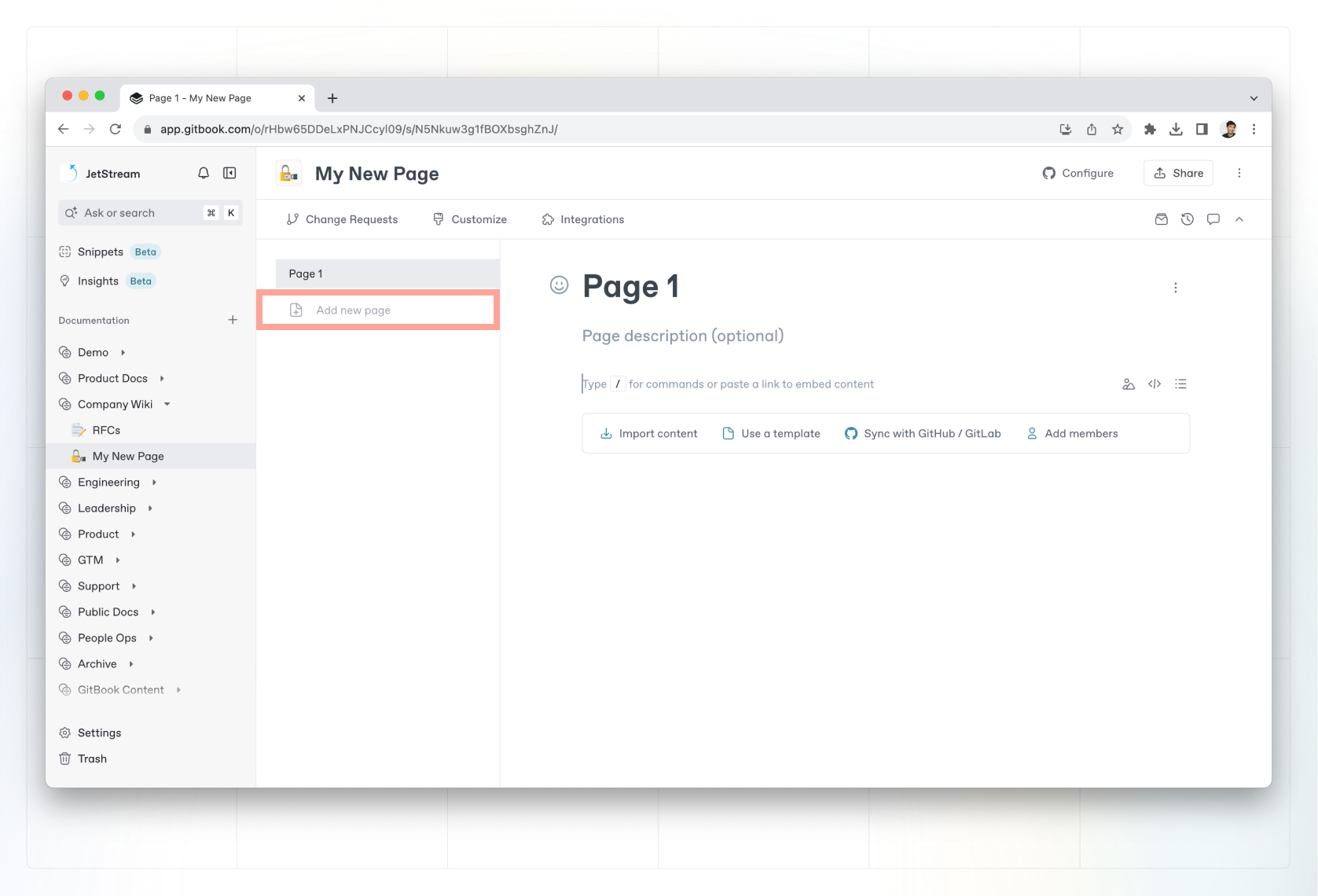
<figure><img src="https://1050631731-files.gitbook.io/~/files/v0/b/gitbook-x-prod.appspot.com/o/spaces%2FNkEGS7hzeqa35sMXQZ4X%2Fuploads%2FisXf94RlFAzaHEsADHde%2Fnew-page.png?alt=media&#x26;token=6f38b252-9ffa-4de2-b68e-3e3503694da0" alt=""><figcaption><p>You can create a new page or page group from table of contents.</p></figcaption></figure>

When in [live edit](https://gitbook.com/docs/~/changes/pfQHJq75QY5xMYvctdXP/content-editor/editor/live-edits) mode or in a [change request](https://gitbook.com/docs/~/changes/pfQHJq75QY5xMYvctdXP/content-editor/editor/change-requests), you can create a new page by clicking **Add new page** > **New document page** at the bottom of your table of contents.&#x20;

Alternatively, you can hover between pages in the table of contents and click the **+** icon that appears.

Once you’ve created a new page, you can add content to it using the [editor](https://gitbook.com/docs/~/changes/pfQHJq75QY5xMYvctdXP/content-editor/editor).

### Create a page group

Just like creating a new page, you can create a page group by choosing **Add new page** > **New group** from the bottom of your table of contents.

### Create an external link <a href="#external-links" id="external-links"></a>

To add an external link to your space, click the **Add new page** button at the bottom of the table of contents, then choose **New link**. Give the link a title — this will appear in the table of contents — and then add the URL and click **Insert**.

### Can’t see the option to create a new page?

{% hint style="warning" %}
If [live edits](https://gitbook.com/docs/~/changes/pfQHJq75QY5xMYvctdXP/content-editor/editor/live-edits) are disabled for your space, you’ll need to create or edit a [change request](https://gitbook.com/docs/~/changes/pfQHJq75QY5xMYvctdXP/content-editor/editor/change-requests). Once you’re in a change request, the **New page** button (which allows you to create pages, page groups and links) will be available in the table of contents.

Alternatively, you may not have the correct [permissions](https://gitbook.com/docs/~/changes/pfQHJq75QY5xMYvctdXP/account-management/member-management/permissions-and-inheritance) to edit a page.
{% endhint %}
