> For the complete documentation index, see [llms.txt](https://gitbook.com/docs/llms.txt). Markdown versions of documentation pages are available by appending `.md` to page URLs; this page is available as [Markdown](https://gitbook.com/docs/documentation/zh/xie-zuo/share.md).
# 邀请你的团队
了解如何将队友和其他相关人员以成员或访客身份邀请到你的 GitBook 组织,以便他们可以协作处理你的内容
邀请你的团队加入 GitBook,在页面、空间和已发布的网站上协作。
{% hint style="warning" %}
### 所有额外成员都将添加到你的订阅中
向你的组织邀请额外成员——无论其角色如何或你如何添加他们——都会立即影响你的订阅价格。请查看我们的 [计费政策](/docs/documentation/zh/zhang-hu-yu-ji-fei/plans/billing-policy.md) 了解详情。
{% endhint %}
### 通过电子邮件邀请某人加入你的组织
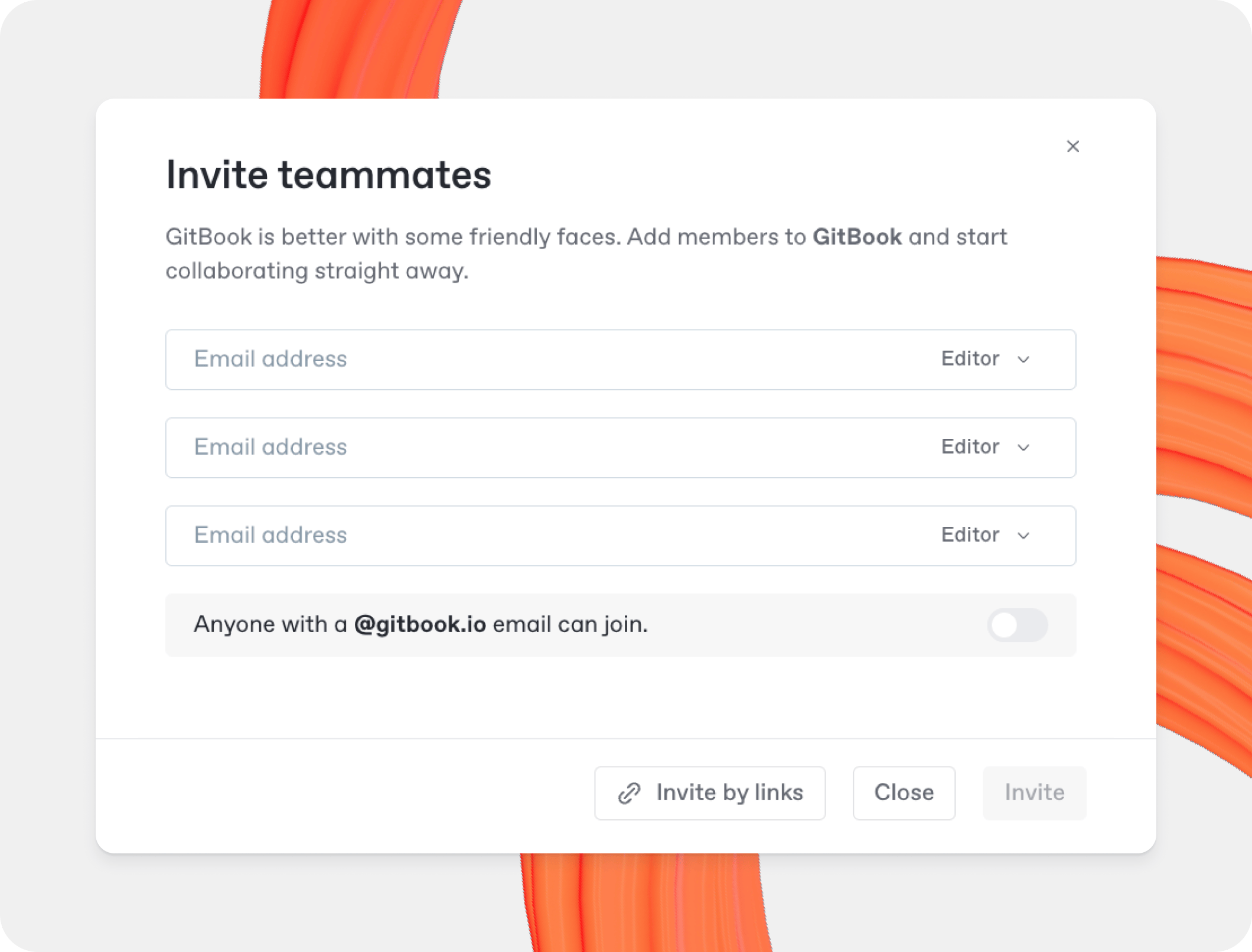
你可以通过你的 [组织设置](/docs/documentation/zh/zhang-hu-yu-ji-fei/organization-settings.md)。在 **成员** 部分的 **设置** 屏幕中,点击 **邀请新成员**,然后添加电子邮件地址,选择其默认角色,并点击 **邀请**.
每位成员都会收到一封电子邮件,借此注册 GitBook 并立即加入你的组织。
{% hint style="info" %}
### 电子邮件域
如果你愿意,可以允许具有特定电子邮件域的所有用户加入你的组织。为此,请打开你的组织的 **设置** 页面,选择 **成员** 选项,点击 **邀请新成员** 并启用弹窗底部的开关。
{% endhint %}
### 通过邀请链接邀请某人加入你的组织
GitBook 中的邀请链接可让你维护一个链接列表,成员可以使用这些链接注册并快速加入你的组织。
邀请链接绑定到特定的 [角色](/docs/documentation/zh/xie-zuo/member-management/roles.md),而且你可以根据需要创建——并撤销——任意数量的邀请链接。
以下是创建指向你组织的邀请链接的方法:
1. 打开你的 [组织设置](/docs/documentation/zh/zhang-hu-yu-ji-fei/organization-settings.md),然后选择 **成员** 部分。
2. 点击 **邀请新成员**,然后点击 **通过链接邀请** 按钮。
3. 使用现有链接之一,或点击 **创建多个链接** 来添加新链接。
4. 选择 [role](/docs/documentation/zh/xie-zuo/member-management/roles.md) 为新用户选择你想要的角色,复制链接,并与新成员分享。
要撤销邀请链接,请按上述相同步骤操作,然后找到该链接,打开 **操作菜单** 并选择 **撤销**.
## 邀请某人加入单个空间或集合
要分享单个 [space](/docs/documentation/zh/chuang-jian-nei-rong/content-structure/space.md),点击 **分享** 按钮位于空间右上角。要分享一个 [集合](/docs/documentation/zh/chuang-jian-nei-rong/content-structure/collection.md),请打开其 **操作菜单** 并选择 **权限**。这将打开 **分享** 弹窗。
### 邀请你组织中的成员或团队
你团队中的某些人可能由于其 [role](/docs/documentation/zh/xie-zuo/member-management/roles.md) 或特定的 [权限设置](/docs/documentation/zh/xie-zuo/member-management/permissions-and-inheritance.md).
要邀请已是你组织成员的人:
1. 打开该空间或集合的 **分享** 弹窗
2. 输入其姓名,选择其在此空间中的角色,并点击 **邀请**.
你也可以添加整个 [团队](/docs/documentation/zh/xie-zuo/member-management/teams.md) ,输入团队名称并点击 **邀请**.
### 邀请组织外部的某人
要将组织外部的人邀请到某个空间或集合:
1. 打开该空间或集合的 **分享** 弹窗
2. 添加该人员的电子邮件地址,选择其在此集合中的角色,并点击 **邀请**.
默认情况下,你添加的人将是 [访客](/docs/documentation/zh/xie-zuo/member-management/roles.md#guest-role) ,位于该空间或集合中。访客只能访问你邀请他们加入的单个空间,并且可以被授予特定的 [role](/docs/documentation/zh/xie-zuo/member-management/roles.md) 在该空间中的权限——无论是编辑内容,还是仅查看和评论。
或者,你也可以选择启用 **作为组织成员邀请** 开关,这将使新成员能够以你所选角色的权限访问你团队的所有内容。
{% hint style="warning" %}
### 所有额外成员都将添加到你的订阅中
向你的组织邀请额外成员——无论是作为正式成员还是访客——都会立即影响你的订阅价格。请查看我们的 [计费政策](/docs/documentation/zh/zhang-hu-yu-ji-fei/plans/billing-policy.md) 了解详情。
{% endhint %}
### 通过链接邀请访客
如果你不想使用电子邮件邀请某人访问你的内容,或者想快速以访客身份邀请多人,你可以创建一个秘密链接。你还可以设置通过该链接加入的访客角色,这样你就可以控制谁能对你的内容做什么。
当你分享此链接时,任何点击它的人都可以注册,以访客身份加入你的组织,并仅访问这个单个空间及其内容。
你可以随时通过打开 **操作菜单** 链接旁边的 **撤销**.
---
# Agent Instructions
This documentation is published with GitBook. GitBook is the documentation platform designed so that both humans and AI agents can read, navigate, and reason over technical content effectively. Learn more at gitbook.com.
## Querying This Documentation
If you need additional information that is not directly available in this page, you can query the documentation dynamically by asking a question.
Perform an HTTP GET request on the current page URL with the `ask` query parameter, and the optional `goal` query parameter:
```
GET https://gitbook.com/docs/documentation/zh/xie-zuo/share.md?ask=&goal=
```
`ask` is the immediate question: it should be specific, self-contained, and written in natural language.
`goal` is optional and describes the broader end goal you are ultimately trying to accomplish on behalf of the user. GitBook uses it to tailor the answer towards what is most useful for that goal.
The response will contain a direct answer to the question and relevant excerpts and sources from the documentation.
Use this mechanism when the answer is not explicitly present in the current page, you need clarification or additional context, or you want to retrieve related documentation sections.