> For the complete documentation index, see [llms.txt](https://gitbook.com/docs/llms.txt). Markdown versions of documentation pages are available by appending `.md` to page URLs; this page is available as [Markdown](https://gitbook.com/docs/documentation/zh/ai-for-your-readers/gitbook-ai-assistant.md).

# AI 助手

AI 助手会从你的整个知识库中提取准确且具上下文的答案——不只是你的文档

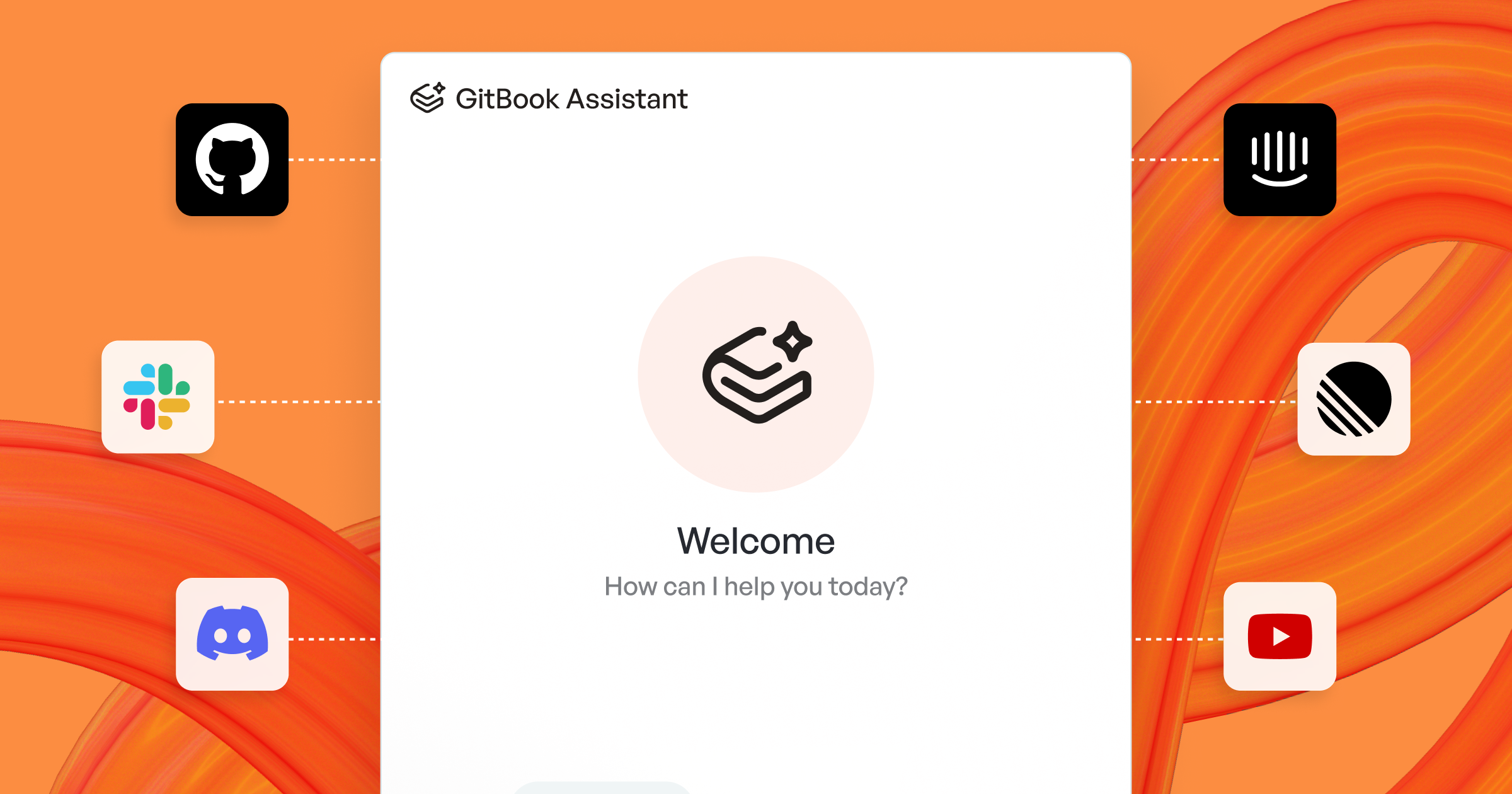
<figure><img src="https://2111890564-files.gitbook.io/~/files/v0/b/gitbook-x-prod.appspot.com/o/spaces%2FNkEGS7hzeqa35sMXQZ4X%2Fuploads%2FlzOUuOwM4Vffctmf3VHC%2F25_03_31_gitbook_assistant%402x.png?alt=media&amp;token=914e435f-6305-41d8-b05c-23884ceba4e7" alt="GitBook Assistant"><figcaption><p>GitBook 助手</p></figcaption></figure>

AI 助手使用自然语言为你的用户提供关于文档的快速、准确答案。它会根据你的用户进行个性化设置，可以嵌入到你的网站或产品中，并可显示在已发布文档的侧边栏或搜索框中。

可以把它看作是一位产品专家，在用户最需要的时间和地点随时可供所有用户使用。

助手使用代理式检索，基于用户当前页面、之前阅读过的页面以及之前的对话来理解查询的上下文。

试着在下面的框中向助手提问：

<p align="center"><button type="button" class="button primary" data-action="ask" data-icon="gitbook-assistant">提问...</button></p>

## 配置 AI 助手 <a href="#how-do-i-use-gitbook-ai" id="how-do-i-use-gitbook-ai"></a>

要配置 AI 助手，请打开 **自定义** 网站侧边栏中的 **AI 助手**。在这里，你可以启用助手，并自定义其说明、欢迎消息和建议问题。

### 添加自定义说明

自定义说明可调整助手的语气，并添加产品特定的知识或术语，从而让其回答始终与你的整体风格一致。

{% hint style="info" %}
自定义说明可优化助手的语气和知识。它们不能覆盖其内置的安全护栏。
{% endhint %}

### 自定义欢迎消息

欢迎消息是访客在没有活动对话时打开助手时看到的第一条内容。可用它来设定预期，或引导用户进入特定工作流程。

### 添加建议问题

建议问题是在助手以无活动对话状态打开时显示的预写提示。它们可帮助用户了解自己可以问什么，并帮助你将用户引导到有用的答案或工作流程。

#### 建议问题的最佳实践：

* 从真实的用户目标开始（设置、故障排除、集成）。
* 使用你的用户会使用的词语（避免内部代号）。
* 保持具体。“我该如何……？”比“告诉我关于……”更好。
* 覆盖不同意图：快速入门、操作指南、故障排除和参考。

{% hint style="info" %}
如果你将助手嵌入到产品中，也可以在嵌入配置中动态设置建议。参见 [自定义嵌入](/docs/documentation/zh/publish/embedding/configuration/customizing-docs-embed.md#adding-suggestions).
{% endhint %}

### 选择助手的显示位置 <a href="#choose-your-sites-search-experience" id="choose-your-sites-search-experience"></a>

下方 **外观**，设置 **位置** 以选择读者访问助手的方式：

* **侧边栏** (默认) — 完整聊天体验，适用于 Ultimate 站点计划
* **搜索框** — 与关键词搜索结果并列显示的内联答案，适用于 Premium 和 Ultimate 站点计划

{% hint style="info" %}
助手问候语仅适用于侧边栏位置，因此在以下情况下会隐藏： **位置** 设置为 **搜索框**.
{% endhint %}

{% hint style="warning" %}
将 **AI 助手** 关闭后再重新开启会重置 **位置** ，对应 **侧边栏**。如果你的网站使用搜索框位置，请在重新启用助手后再次设置。
{% endhint %}

## 在已发布文档中使用 AI 助手 <a href="#how-do-i-use-gitbook-ai-in-published-docs" id="how-do-i-use-gitbook-ai-in-published-docs"></a>

读者如何访问助手取决于其显示位置。

### 侧边栏位置

用户可以通过三种方式访问 GitBook 助手：

* 按 <kbd>⌘</kbd> + <kbd>I</kbd> 在 Mac 上，或 <kbd>Ctrl</kbd> + <kbd>I</kbd> 在 PC 上
* 点击 **GitBook 助手** <i class="fa-gitbook-assistant">:gitbook-assistant:</i> 按钮旁边的 **“提问或搜索…”** 栏
* 在以下栏中输入问题： **“提问或搜索…”** 栏，然后在菜单顶部选择“提问…”选项

### 搜索框位置

当 **位置** 设置为 **搜索框**时，用户可以直接在 **“提问或搜索…”** 页面顶部的栏中，与关键词结果并列提问。

他们可以直接点击打开它，或者按下 <kbd>⌘</kbd> + <kbd>K</kbd> 在 Mac 上，或 <kbd>Ctrl</kbd> + <kbd>K</kbd> 在 PC 上。

除了总结后的答案外，你的用户还会在下方看到一个可展开的部分，其中显示助手用于生成答案的来源，以及可点击作为后续提问的相关问题。

助手会根据你的文档站点内容，以及你通过 [连接](/docs/documentation/zh/ai-for-your-readers/connections.md).

{% hint style="warning" %}
助手不会跨不同的单个已发布部分进行回答， [文档站点](/docs/documentation/zh/publish/publish-a-docs-site.md).

多部分搜索仅在查看已发布的 [章节](/docs/documentation/zh/manage-your-site/site-structure/site-sections.md) 且位于同一站点内的内容时可用。
{% endhint %}

## 搜索已发布文档

无论是否启用助手，每个站点都会自动启用关键词搜索。

你的用户可以在文档站点内搜索关键词，并快速跳转到整个站点中的特定页面或页面部分。

## 将 AI 助手嵌入到你的产品中

你可以将 GitBook 助手直接嵌入到产品或网站中，让用户无需离开应用即可立即获得 AI 驱动的帮助。助手可以作为以下内容的一部分嵌入： [文档嵌入](/docs/documentation/zh/publish/embedding.md)，其中包括用于 AI 聊天的“助手”选项卡、用于限定范围搜索的“搜索”选项卡，以及用于浏览文档的“文档”选项卡。

选择适合你技术栈的嵌入方式：

* [**独立脚本标签**](/docs/documentation/zh/publish/embedding/implementation/script.md) – 使用一个快速设置的 `<script>` tag
* [**Node.js/NPM**](/docs/documentation/zh/publish/embedding/implementation/nodejs.md) – 服务器端或构建时集成
* [**React 组件**](/docs/documentation/zh/publish/embedding/implementation/react.md) – 预构建的 React 组件

### 其他助手嵌入指南：

* [在需要身份验证的文档中使用嵌入式助手](/docs/documentation/zh/publish/embedding/using-with-authenticated-docs.md) – 如果你的文档需要登录，则必需
* [自定义助手嵌入](/docs/documentation/zh/publish/embedding/configuration/customizing-docs-embed.md) – 欢迎消息、操作和建议
* [创建自定义嵌入工具](/docs/documentation/zh/publish/embedding/configuration/creating-custom-tools.md) – 将助手连接到你的 API
* [API 参考](/docs/documentation/zh/publish/embedding/configuration/reference.md) – 所有可用方法和事件

## 扩展 AI 助手的知识

AI 助手可以通过以下方式使用外部知识： [连接](/docs/documentation/zh/ai-for-your-readers/connections.md) 和 [MCP 服务器](/docs/documentation/zh/ai-for-your-readers/mcp-servers-for-published-docs.md).

当你希望 GitBook 将记录同步到你的网站时，可以使用连接；当你希望将 AI 助手接入自定义工具时，可以使用 MCP 服务器。

<table data-card-size="large" data-view="cards"><thead><tr><th></th><th>最适合</th></tr></thead><tbody><tr><td><strong>连接</strong></td><td><p>连接最适合内容密集型来源：</p><ul><li>GitHub 问题和讨论</li><li>Slack 或 Discord 对话</li><li>支持内容</li><li>外部文档、帮助中心和网站</li></ul></td></tr><tr><td><strong>MCP 服务器</strong></td><td><p>MCP 服务器最适合实时工具和数据：</p><ul><li>当前账户或产品状态</li><li>经常变化的内部系统</li><li>创建工单或提交 bug 等操作</li><li>你不想同步到 GitBook 的来源</li></ul></td></tr></tbody></table>

{% tabs %}
{% tab title="添加连接" %}
{% stepper %}
{% step %}
**打开你网站的设置**

打开你的网站仪表板。然后选择 **设置** → **连接**.
{% endstep %}

{% step %}
**连接一个来源**

选择一种来源类型。然后对其进行授权，或输入要导入的 URL。
{% endstep %}

{% step %}
**向 AI 助手公开记录**

开启 **在搜索 / 助手中公开** 用于该连接。

GitBook 随后可以在搜索和 AI 助手中使用这些记录。
{% endstep %}
{% endstepper %}
{% endtab %}

{% tab title="添加 MCP 服务器" %}
{% stepper %}
{% step %}
**打开你网站的设置**

打开你的网站仪表板。然后选择 **设置** → **AI 与 MCP**.
{% endstep %}

{% step %}
**添加新服务器**

在 MCP 服务器表中，点击 **添加 MCP 服务器**.
{% endstep %}

{% step %}
**输入服务器详情**

为服务器命名。添加其 URL。

然后配置 GitBook 必须在每个请求中发送的任何 HTTP 标头。
{% endstep %}
{% endstepper %}
{% endtab %}
{% endtabs %}


---

# Agent Instructions
This documentation is published with GitBook. GitBook is the documentation platform designed so that both humans and AI agents can read, navigate, and reason over technical content effectively. Learn more at gitbook.com.

## Querying This Documentation
If you need additional information that is not directly available in this page, you can query the documentation dynamically by asking a question.

Perform an HTTP GET request on the current page URL with the `ask` query parameter, and the optional `goal` query parameter:

```
GET https://gitbook.com/docs/documentation/zh/ai-for-your-readers/gitbook-ai-assistant.md?ask=<question>&goal=<endgoal>
```

`ask` is the immediate question: it should be specific, self-contained, and written in natural language.
`goal` is optional and describes the broader end goal you are ultimately trying to accomplish on behalf of the user. GitBook uses it to tailor the answer towards what is most useful for that goal.

The response will contain a direct answer to the question and relevant excerpts and sources from the documentation.

Use this mechanism when the answer is not explicitly present in the current page, you need clarification or additional context, or you want to retrieve related documentation sections.