> For the complete documentation index, see [llms.txt](https://gitbook.com/docs/llms.txt). Markdown versions of documentation pages are available by appending `.md` to page URLs; this page is available as [Markdown](https://gitbook.com/docs/documentation/ja-gitbook-documentation/saitowosuru/customization.md).
# サイトのカスタマイズ
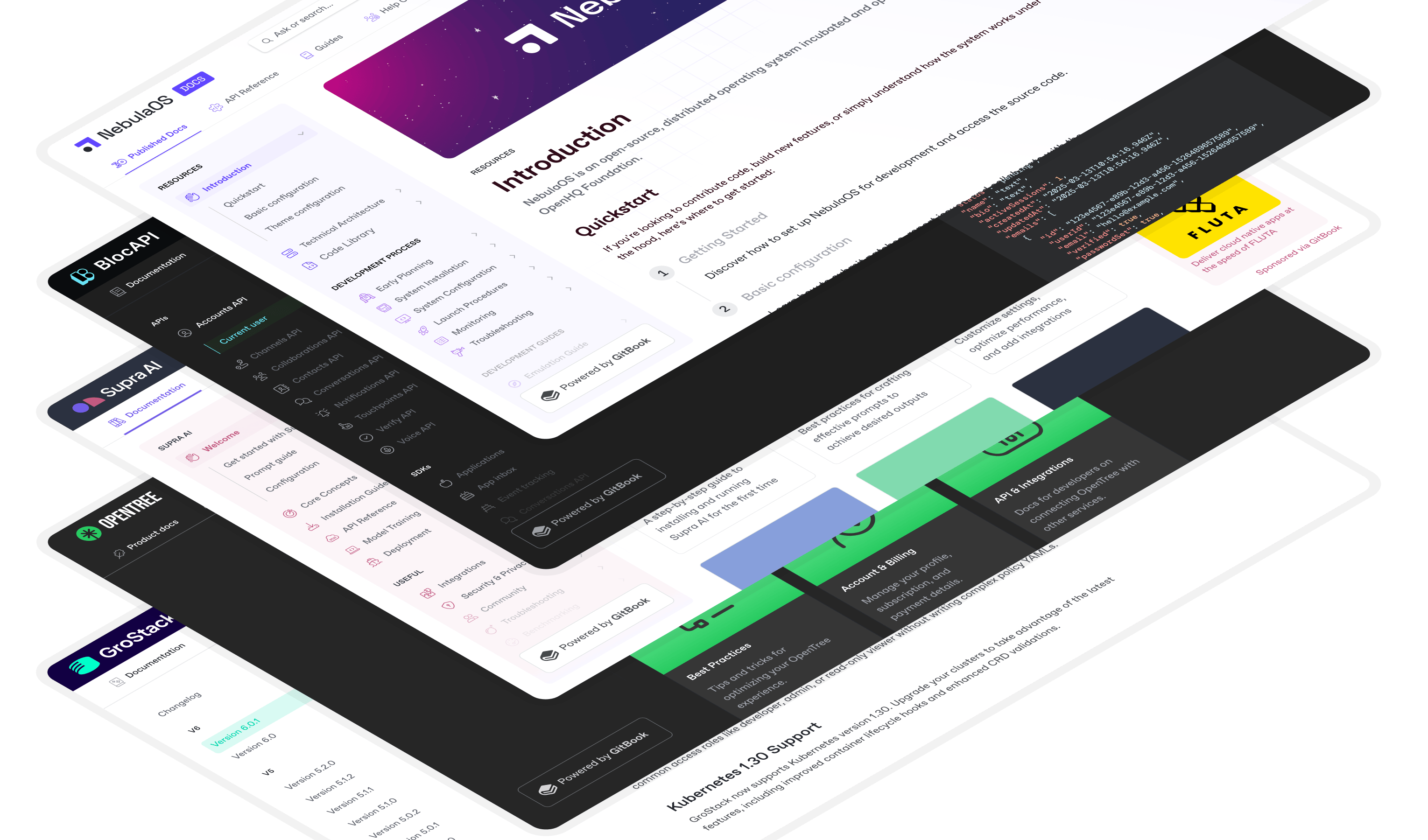
カスタムロゴ、フォント、色、リンクなどを使ってブランド化されたドキュメントを作成します
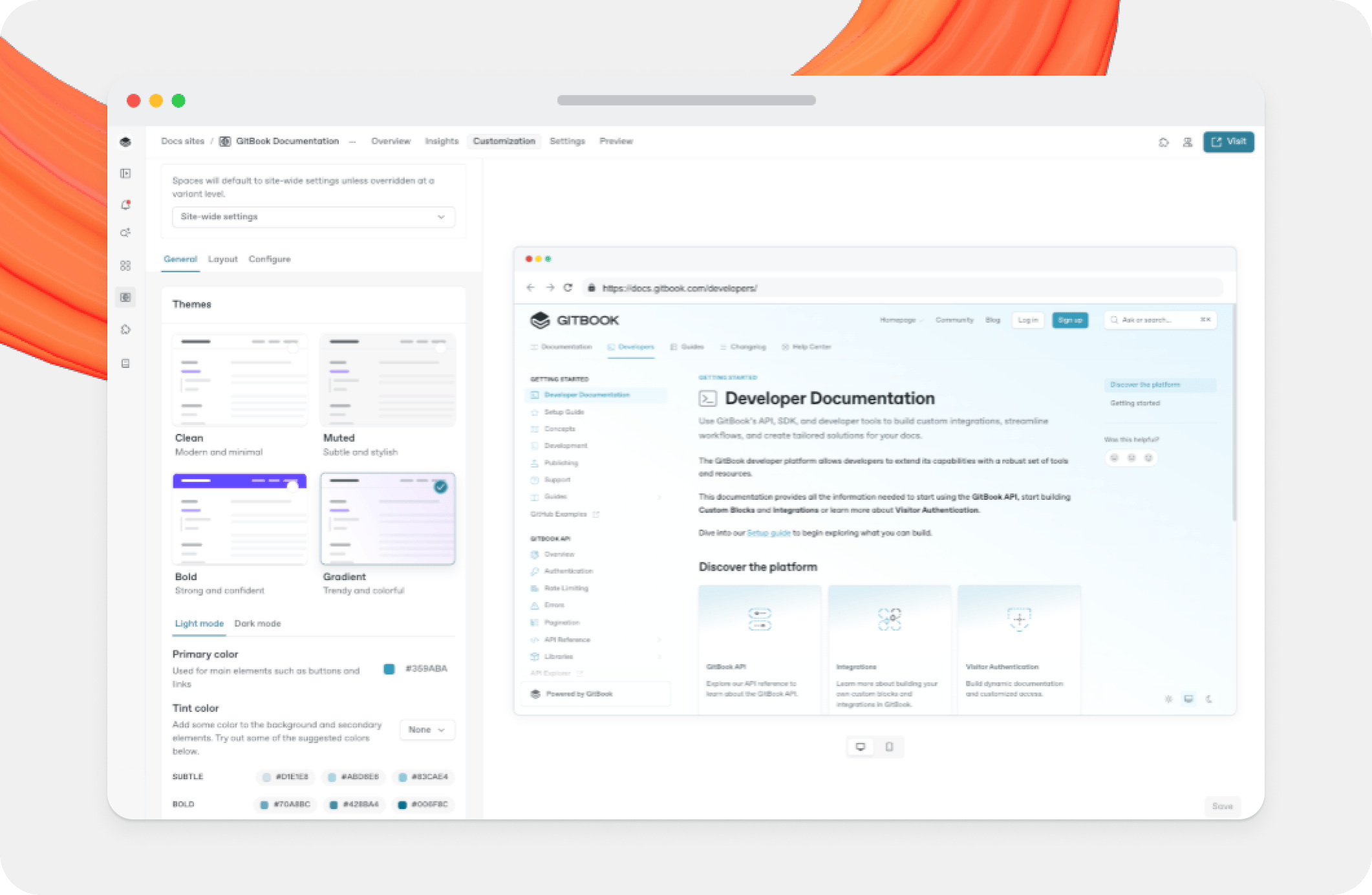
公開されたドキュメントの外観をカスタマイズしたり、ユーザーインターフェースをコンテンツの言語に合わせたり、その他さまざまなことができます。
サイト全体のテーマとしてドキュメントサイト全体にカスタマイズを適用したり、個別のバリアントやサイトセクションに適用したりできます。
{% hint style="warning" %}
特定のサイトセクションに加えた変更は、後でサイト全体の設定を再度変更した場合でも、サイト全体のカスタマイズ設定より優先されます。
次の **リセット** ボタン をクリックすると、カスタマイズの上書きをサイト全体の既定値に戻せます。
{% endhint %}
### 「高度なカスタマイズ」に含まれるものは?
すべての GitBook ユーザーは、ドキュメントサイトで基本的なカスタマイズオプションを利用できます。Premium または Ultimate のサイトプランをご利用のユーザーは、高度なカスタマイズ機能も使って、ブランドに合わせてドキュメントをさらに調整できます。
高度なカスタマイズオプションには以下が含まれます。
* **カスタムロゴ** – ドキュメントサイト上部の絵文字とタイトルを置き換えるロゴを追加します。
* **アイコンのスタイル** - ドキュメントサイト内のページアイコンの太さとスタイルを変更します。
* **カスタムフォント** – ドキュメントサイトの主要フォントと等幅フォントを変更します。
* **フッター** – ドキュメントの下部にあるフッターに、カスタムロゴ、著作権テキスト、ナビゲーションを追加します。
* **太字とグラデーションのテーマ** – これらの新しいテーマを使って、ヘッダーの背景色を変更したり、サイト全体にグラデーション背景を追加したりできます。
* **セマンティックカラー** – 公開コンテンツ内のヒントブロックの背景色やコードブロックのスタイルを変更します。
* **コードテーマ** – 既定のテーマ、またはサイトの色を使用する適応型テーマのいずれかを使って、公開ドキュメント内のコードブロックと API ブロックの外観を変更します。
### 何をカスタマイズできないのですか?
上記のオプションによりサイトをさまざまにカスタマイズできますが、選択した [プランにかかわらず、カスタマイズできないものがいくつかあります。](/docs/documentation/ja-gitbook-documentation/akauntoto/plans.md).
1. ページ上の要素のレイアウトをカスタマイズすることはできません(ただし、 *が* することは [特定のページで一部の要素を非表示にする](/docs/documentation/ja-gitbook-documentation/kontentsuwosuru/content-structure/page.md)).
2. GitBook サイトにカスタムコード(CSS、HTML、JS など)を直接挿入することはできません。すでに多くの人気ツールと連携しており、さらに [リッチ埋め込み](/docs/documentation/ja-gitbook-documentation/kontentsuwosuru/blocks/embed-a-url.md) も多数提供しています。
3. 公開されたドキュメントに表示される小さな「Powered by GitBook」リンクを削除することはできません。
---
# Agent Instructions
This documentation is published with GitBook. GitBook is the documentation platform designed so that both humans and AI agents can read, navigate, and reason over technical content effectively. Learn more at gitbook.com.
## Querying This Documentation
If you need additional information that is not directly available in this page, you can query the documentation dynamically by asking a question.
Perform an HTTP GET request on the current page URL with the `ask` query parameter, and the optional `goal` query parameter:
```
GET https://gitbook.com/docs/documentation/ja-gitbook-documentation/saitowosuru/customization.md?ask=&goal=
```
`ask` is the immediate question: it should be specific, self-contained, and written in natural language.
`goal` is optional and describes the broader end goal you are ultimately trying to accomplish on behalf of the user. GitBook uses it to tailor the answer towards what is most useful for that goal.
The response will contain a direct answer to the question and relevant excerpts and sources from the documentation.
Use this mechanism when the answer is not explicitly present in the current page, you need clarification or additional context, or you want to retrieve related documentation sections.