> For the complete documentation index, see [llms.txt](https://gitbook.com/docs/llms.txt). Markdown versions of documentation pages are available by appending `.md` to page URLs; this page is available as [Markdown](https://gitbook.com/docs/documentation/ja-gitbook-documentation/rifarensu/gitbook-ui.md).

# GitBook UI

GitBookの操作方法を学ぶ

GitBook はドキュメントサイトを中心に構成されています。まずは組織から始まります **ホーム**、サイトを開いてその内容を編集し、セクション内のページを編集します。このページでは、インターフェースの各部分を順に説明します。

### ホーム

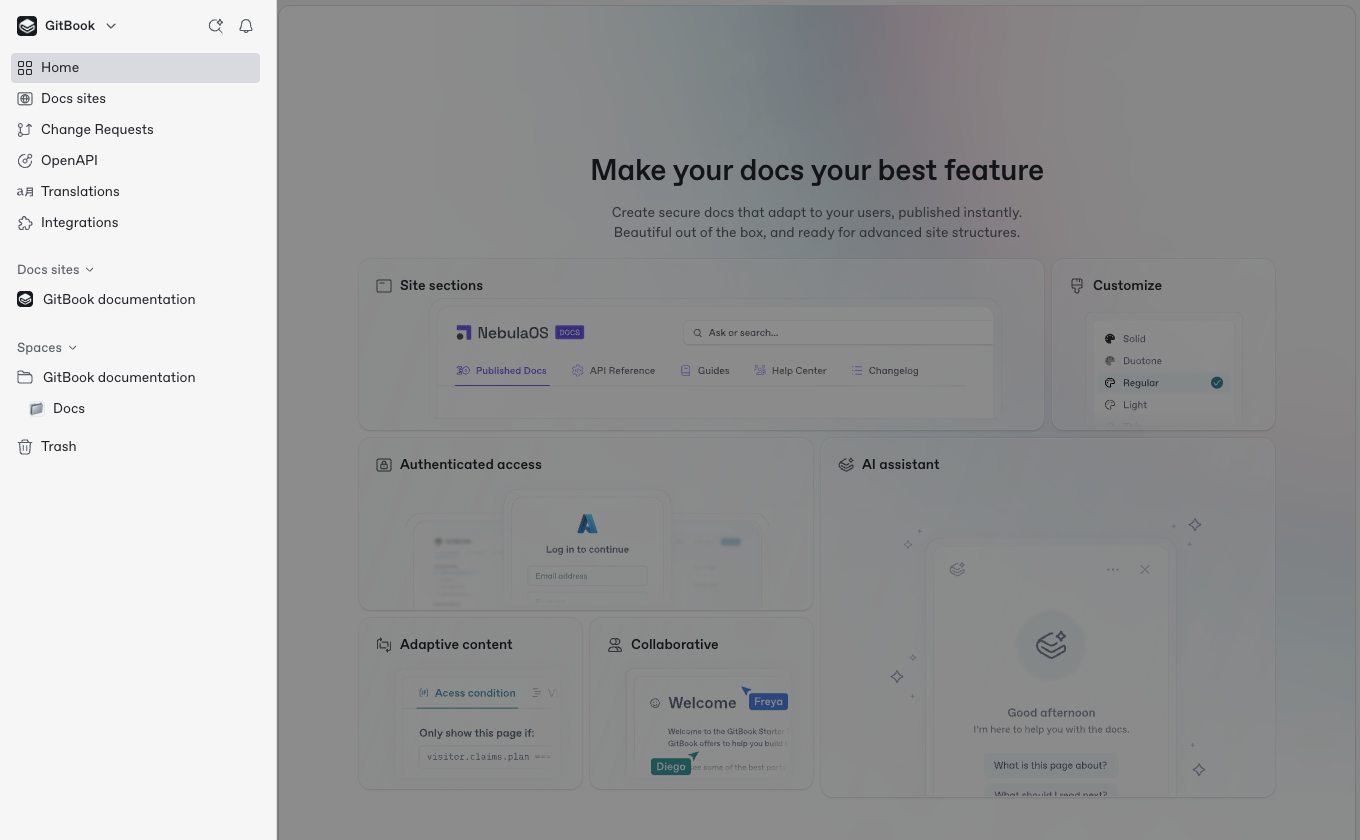
<div data-with-frame="true"><figure><img src="https://4217681718-files.gitbook.io/~/files/v0/b/gitbook-x-prod.appspot.com/o/spaces%2FNkEGS7hzeqa35sMXQZ4X%2Fuploads%2FMINl0qBtvGV3pt8G3bnZ%2FCleanShot%202025-12-10%20at%2010.02.40.png?alt=media&amp;token=57f3871d-67b0-432e-b646-8b5e5a073aaa" alt=""><figcaption><p>組織のホームから、サイト、コンテンツ、組織の管理機能にアクセスできます。</p></figcaption></figure></div>

GitBook を開くと、組織のホームに表示されます **ホーム**：組織内のすべてのドキュメントサイトが 1 か所にまとまっています。ここからサイトを開いたり、新しいサイトを作成したり、組織全体の設定を調整したりできます。ホームには次が含まれます：

* **切り替え**\
  に戻る **ホーム** サイドバー上部の切り替えメニューを使えば、どこからでも戻れます。複数の組織に参加している場合は、ここで表示して切り替えたり、新しい組織を作成したりできます。
* **通知**\
  コメントや会話でタグ付けされたとき、または作業中のセクションで重要なアクティビティがあったときに、 [通知](/docs/documentation/ja-gitbook-documentation/collaborate/notifications.md) 新着情報が表示されます。
* **質問するか検索**\
  提供 [GitBook エージェント](/docs/documentation/ja-gitbook-documentation/kontentsuwosuru/searching-your-content/gitbook-ai.md)、自然言語で質問したり、組織内のサイトやコンテンツを検索したりできます。
* **サイト一覧**\
  組織内のすべてのドキュメントサイトを表示します。サイトをクリックして開きます。
* **すべてのコンテンツ**\
  組織にどのサイトにも属していないコンテンツがある場合は、 **すべてのコンテンツ** サイトの横にツリー表示のセクションとして表示されます。すべてのコンテンツがいずれかのサイトに属している場合、このセクションは表示されません。
* **設定**\
  [組織設定](/docs/documentation/ja-gitbook-documentation/akauntoto/organization-settings.md) と [アカウント設定](/docs/documentation/ja-gitbook-documentation/akauntoto/account-settings.md) 専用の画面を 1 つ共有します。設定は次の単位でグループ化されます **アカウント** と **組織**.

  **アカウント** 含まれます **全般**, **通知**, **組織**、そして **開発者ツール**. **組織** 含まれます **全般**, **メンバー**, **マージルール**, **GitBook エージェント**, **連携**, **OpenAPI**, **翻訳**, **招待リンク**, **チーム**, **SSO**、そして **請求**。クリックして **アプリに戻る** 作業に戻ります。
* **スタイルガイド**\
  すべて表示 [スタイルガイド](/docs/documentation/ja-gitbook-documentation/manage-your-site/site-structure.md) 組織内と、それを使用しているサイトを。
* **ゴミ箱**\
  削除されたセクションは **ゴミ箱**に表示されます。最大 7 日間は復元できます。それ以降は完全に削除されます。

### サイトサイドバー

サイトを開くと、サイドバーはそのサイトのコンテンツとツールに置き換わります。これは公開済みサイトで訪問者が見るのと同じ構成です。サイトサイドバーには次が含まれます：

* **サイトヘッダー**\
  サイト名と公開ステータス、そして **プレビュー** と **公開する** ボタン。
* **サイトツール**\
  **概要**, **変更リクエスト**, **サイト構造**, **カスタマイズ**, **拡張**、そして **設定**、さらに **Git Sync** と **トリアージ** それらが適用される場所です。各項目はメインビューで開きます。
* **分析**\
  [**トラフィック**](/docs/documentation/ja-gitbook-documentation/analytics/insights/traffic.md), [**Agents & MCP**](/docs/documentation/ja-gitbook-documentation/analytics/insights/agents-and-mcp.md)、そして [**AI アシスタント**](/docs/documentation/ja-gitbook-documentation/analytics/insights/ai-insights.md) レポート。
* **改善**\
  [**スタイルガイド**](/docs/documentation/ja-gitbook-documentation/kontentsuwosuru/styleguide.md), [**コンテンツのギャップ**](/docs/documentation/ja-gitbook-documentation/analytics/content-gaps.md)、そして [**リンク切れ**](/docs/documentation/ja-gitbook-documentation/analytics/broken-links.md).
* **コンテンツ**\
  サイトの [sections](/docs/documentation/ja-gitbook-documentation/manage-your-site/site-structure/site-sections.md) とグループが、公開順に並んでいます。セクションをクリックして編集します。

  ツリーは読み取り専用です。再編成するには [構造エディタ](/docs/documentation/ja-gitbook-documentation/manage-your-site/site-structure.md)を使います。検索、編集、 **+** アイコン **コンテンツ** をヘッダー上で使って、セクションの検索、名前変更、追加を行えます。

### 目次 <a href="#the-table-of-contents" id="the-table-of-contents"></a>

<div data-with-frame="true"><figure><img src="https://4217681718-files.gitbook.io/~/files/v0/b/gitbook-x-prod.appspot.com/o/spaces%2FNkEGS7hzeqa35sMXQZ4X%2Fuploads%2FZYKSwnzcZOkqVA2xgRlX%2FCleanShot%202025-12-10%20at%2010.07.01.png?alt=media&amp;token=47cb70e3-4cee-4fdd-8247-28a04e75f92e" alt=""><figcaption><p>目次には、選択したセクション内のすべてのページとリンクが一覧表示されます。</p></figcaption></figure></div>

デフォルトでは、目次には [ページ、リンク、ページグループ](/docs/documentation/ja-gitbook-documentation/kontentsuwosuru/content-structure/page.md#organizing-your-content) が選択したセクション内で表示されます。これはサイドバーの右側にあります。

また、 [再利用可能なコンテンツ](/docs/documentation/ja-gitbook-documentation/kontentsuwosuru/reusable-content.md) と [ファイル](/docs/documentation/ja-gitbook-documentation/kontentsuwosuru/blocks/insert-files.md) をこのセクションで管理できます。

目次の **ページ** タブから、次の操作ができます：

* 新規作成 [ページ](#pages) とサブページ。
* 作成 [ページグループ](#groups).
* 追加 [外部リンク](#external-links).
* アクセス [アクションメニュー](#the-actions-menu) <picture><source srcset="/files/YjlF3Z9KMYv9aQiFzZKD" media="(prefers-color-scheme: dark)"><img src="https://4217681718-files.gitbook.io/~/files/v0/b/gitbook-x-prod.appspot.com/o/spaces%2FNkEGS7hzeqa35sMXQZ4X%2Fuploads%2F89MTSo5XRpPMVr1T0rxS%2Factions.svg?alt=media&amp;token=2b5d001e-560a-4f29-8d22-de8163725ca1" alt=""></picture> を各ページごとに開く。

の **ライブラリ** タブでは、次のことができます：

* セクション内の再利用可能なコンテンツ、変数、画像、ファイルを表示して検索できます。
* 他のセクションの再利用可能なコンテンツを表示して挿入できます。
* 新しいライブラリアイテムを作成またはインポートできます。
* ライブラリアイテムをページにドラッグ＆ドロップできます。
* ライブラリアイテムをダブルクリックして名前を変更できます。
* 画像をプレビューできます。
* 画像とファイルを管理し、ダウンロードできます。

目次、特にライブラリタブでできることを紹介する短い動画はこちらです：

{% embed url="<https://youtu.be/gg-VZP2wl-I>" %}

ページ内容に集中するには、目次の横にカーソルを合わせて **非表示** <picture><source srcset="/files/t7RZoZXBNdmA75mANdIQ" media="(prefers-color-scheme: dark)"><img src="https://4217681718-files.gitbook.io/~/files/v0/b/gitbook-x-prod.appspot.com/o/spaces%2FNkEGS7hzeqa35sMXQZ4X%2Fuploads%2F0goJ97jfVBvH656kUK0d%2Fpanel%20left.svg?alt=media&amp;token=cb31d43b-804c-4c4f-b5bb-e71db0d03860" alt="The Hide button icon in GitBook"></picture>をクリックします。再表示するには、ページ端の近くにカーソルを合わせて **表示** <picture><source srcset="/files/Vxv06rO6ZJQJWLfW9YHZ" media="(prefers-color-scheme: dark)"><img src="https://4217681718-files.gitbook.io/~/files/v0/b/gitbook-x-prod.appspot.com/o/spaces%2FNkEGS7hzeqa35sMXQZ4X%2Fuploads%2FwOFmEqy96fMvDPjqjAED%2Fpanel%20right.svg?alt=media&amp;token=2f39279a-cd05-48a3-8985-d07ec08663ba" alt="The Show button icon in GitBook"></picture>.

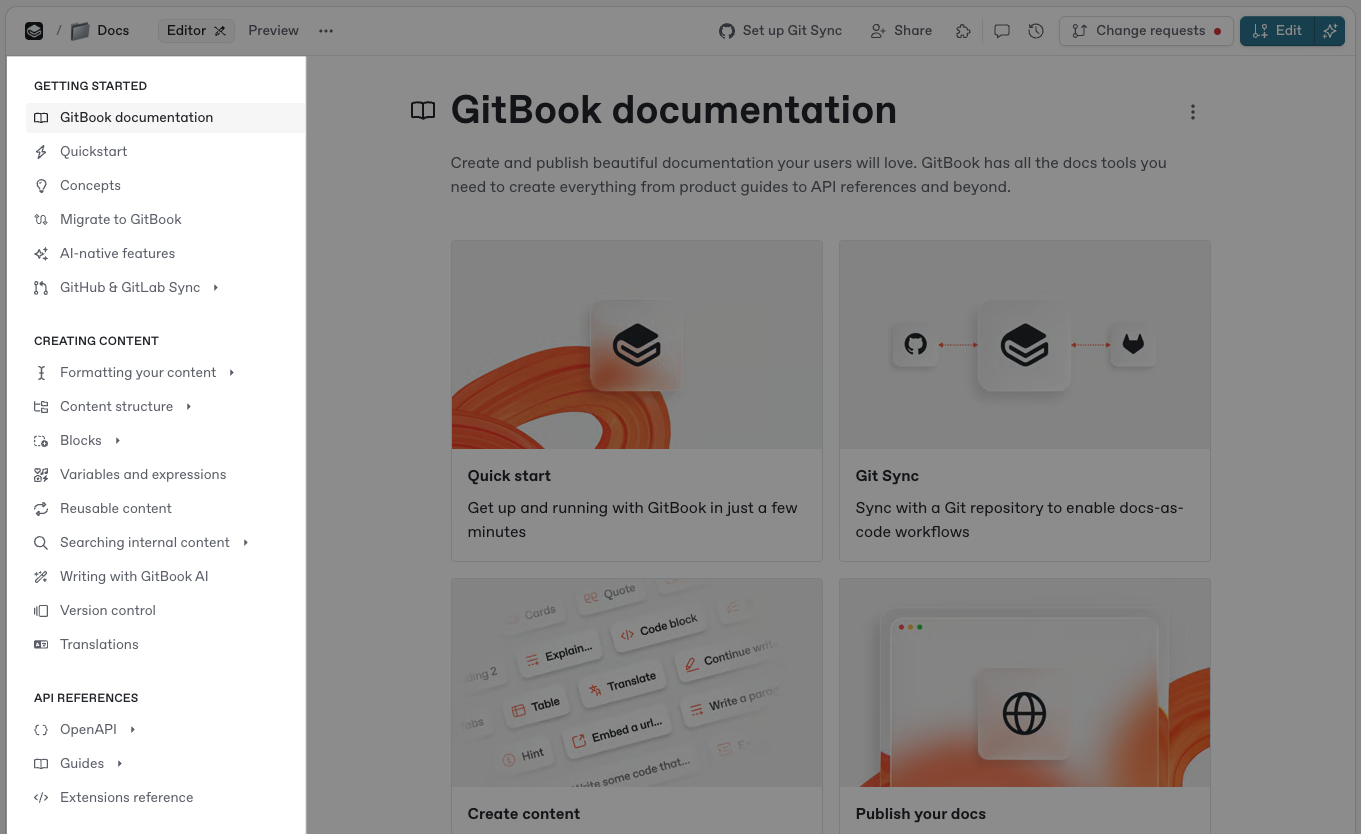
### セクションヘッダー <a href="#space-header" id="space-header"></a>

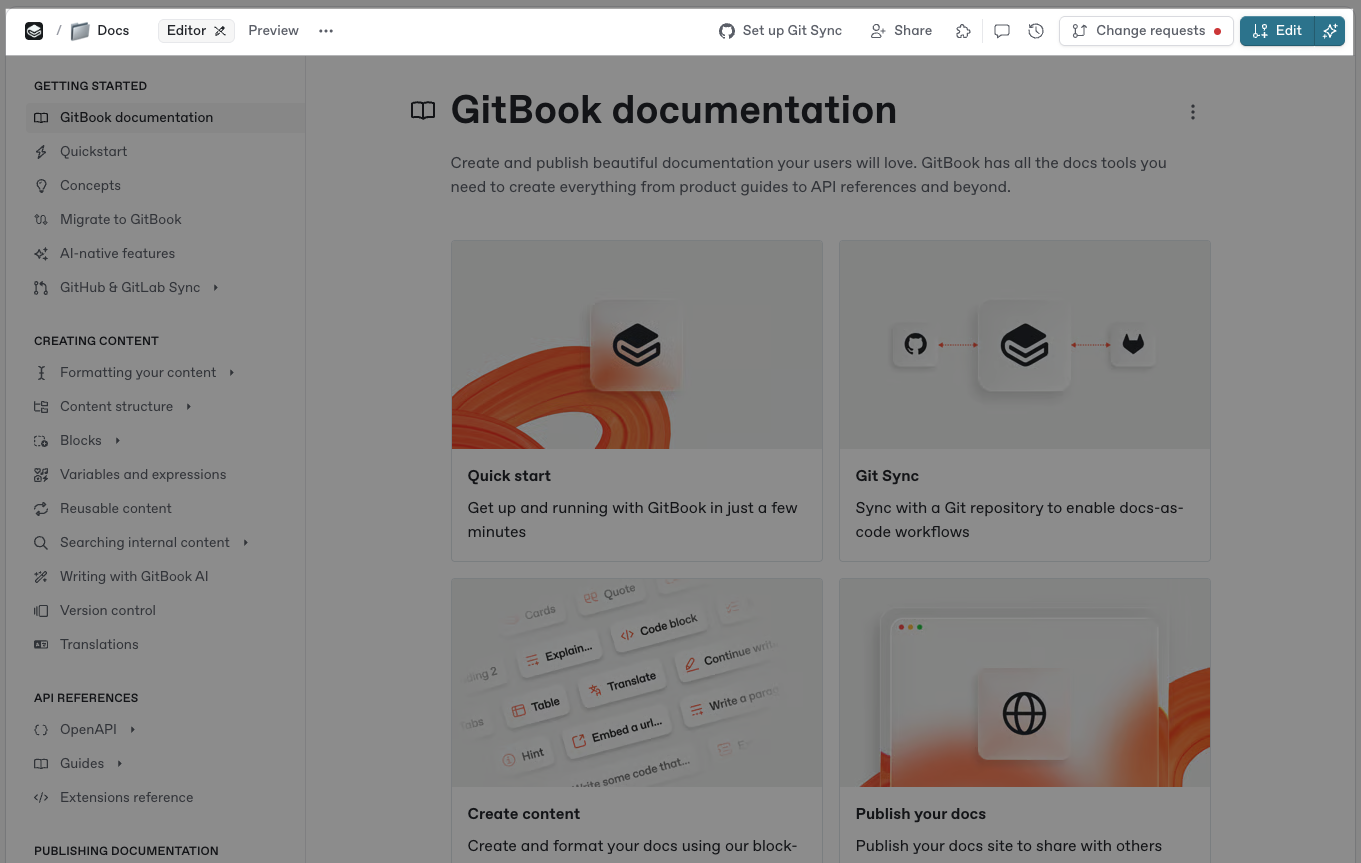
<div data-with-frame="true"><figure><img src="https://4217681718-files.gitbook.io/~/files/v0/b/gitbook-x-prod.appspot.com/o/spaces%2FNkEGS7hzeqa35sMXQZ4X%2Fuploads%2F2Z5NSb3mmbMRoWqONncm%2FCleanShot%202025-12-10%20at%2010.08.48.png?alt=media&amp;token=da8f53b3-d134-46e1-84d1-db3c1e1eb3cd" alt=""><figcaption><p>セクションヘッダーはエディタの上部にあり、セクション全体に適用されるオプションを提供します。</p></figcaption></figure></div>

セクションヘッダーには、現在表示しているセクションに関する情報が含まれます。コメントや履歴を表示したり、 [GitHub または GitLab Sync](/docs/documentation/ja-gitbook-documentation/docs-as-code/git-sync.md)を設定したり、その他の操作ができます。

{% hint style="info" %}
**セクションヘッダーは柔軟に変化し**、現在のセクションとモードに応じて変わります。

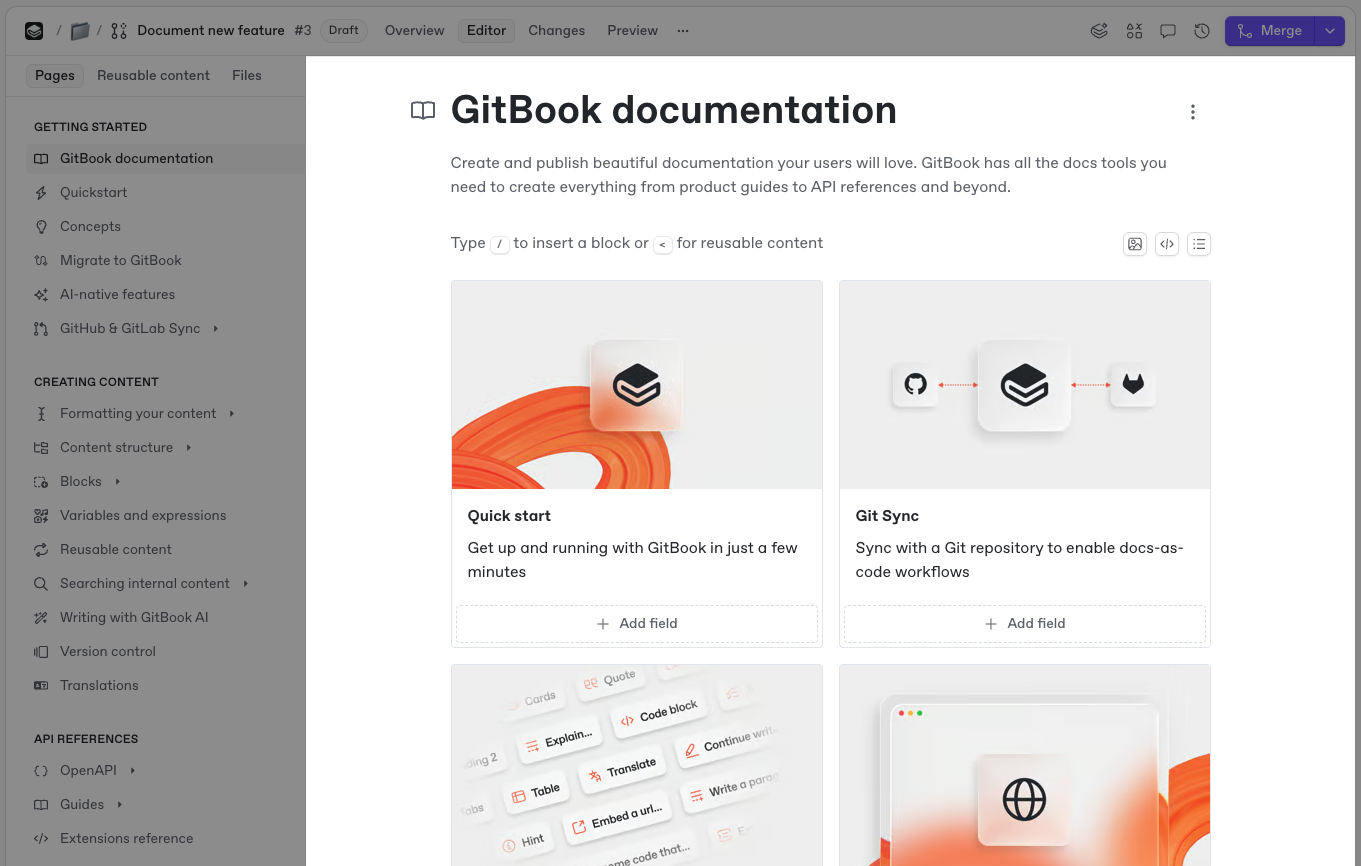
たとえば、 [変更リクエスト](/docs/documentation/ja-gitbook-documentation/collaborate/change-requests.md)を編集中の場合は、変更リクエストの概要とともに、エディタを開く、変更を表示する、変更リクエストをマージするためのオプションが表示されます。

読み取り専用セクションを表示している場合は、ライブ編集がロックされているため、ページを編集するには新しい変更リクエストを開く必要があります。
{% endhint %}

<div data-with-frame="true"><figure><img src="https://4217681718-files.gitbook.io/~/files/v0/b/gitbook-x-prod.appspot.com/o/spaces%2FNkEGS7hzeqa35sMXQZ4X%2Fuploads%2FrTr3IxB9SPupw4YedgqL%2FCleanShot%202025-12-10%20at%2010.11.01.png?alt=media&amp;token=772809ef-1b4b-453f-9ce4-64883cfc292c" alt=""><figcaption><p>変更リクエスト内のセクションヘッダー。</p></figcaption></figure></div>

セクションヘッダーには次が含まれます：

* **セクションの絵文字またはアイコン**\
  セクションをサイドバーで識別しやすいように、絵文字またはアイコンを選択します。
* **セクション名**\
  この名前はサイドバーと公開済みサイトに表示されます。
* **セクションのパンくず**\
  セクションが属するサイト、必要に応じてグループ。
* **アクションメニュー**\
  セクションに対する操作を提供します。 [ページアクション](#the-actions-menu)と同様に、利用できる操作は編集モードによって異なります。
* **概要**\
  変更リクエストでは、タイトル、説明、参加者、レビュー担当者、変更内容、コメントを表示できます。
* **エディタ表示**\
  GitBook のブロックベースエディタでコンテンツを編集します。
* **変更表示**\
  この表示では [変更が強調表示されます](/docs/documentation/ja-gitbook-documentation/collaborate/change-requests.md#diff-mode) 変更リクエスト内の差分表示を使います。マージする前に変更を確認します。
* **プレビュー**\
  変更リクエストをマージする前にコンテンツをプレビューします。
* **共同編集者**\
  セクション内のページを読んでいる人のアバターを表示します。アバターをクリックすると、その人が閲覧しているページを開けます。
* **Git Sync の設定**\
  GitHub と GitLab を設定 [同期](/docs/documentation/ja-gitbook-documentation/docs-as-code/git-sync.md) をこのセクションで管理できます。
* **共有メニュー**\
  セクションを公開・共有したり、他の人を招待して共同作業したりできます。
* **変数**\
  再利用可能な [variables](/docs/documentation/ja-gitbook-documentation/kontentsuwosuru/variables-and-expressions.md) をこのセクションで管理できます。
* **GitBook エージェント**\
  セクションの変更を [GitBook エージェント](/docs/documentation/ja-gitbook-documentation/gitbook-jento/overview.md).
* **コメント**\
  表示 [コメントとディスカッション](/docs/documentation/ja-gitbook-documentation/collaborate/comments.md) セクションのコンテンツについて。
* **変更リクエスト**\
  作成、更新、削除 [変更リクエスト](/docs/documentation/ja-gitbook-documentation/collaborate/change-requests.md).
* **セクション履歴**\
  表示 [バージョン履歴](/docs/documentation/ja-gitbook-documentation/kontentsuwosuru/version-control.md) をセクションまたは変更リクエストで確認できます。
* **編集ボタン**\
  セクションが公開されているか、 [ライブ編集](/docs/documentation/ja-gitbook-documentation/collaborate/live-edits.md) がロックされている場合、 **編集** を作成します [変更リクエスト](/docs/documentation/ja-gitbook-documentation/collaborate/change-requests.md).

### サイトツール <a href="#site-headers" id="site-headers"></a>

サイトツールは、メインビューのサイトサイドバー上部から開きます。サイトヘッダーは **プレビュー** と **公開する**.

* **概要**\
  URL、公開ステータス、対象読者、コンテンツ、主要なインサイトを含む、重要なサイト情報が表示されます。サイトが公開されると、 **概要** そこへのリンクが表示されます。
* **変更リクエスト**\
  サイト内の各セクションにわたる変更リクエスト。
* **サイト構造**\
  を使って [構造エディタ](/docs/documentation/ja-gitbook-documentation/manage-your-site/site-structure.md) セクションとグループの追加、並べ替え、公開、削除を行えます。
* **設定**\
  [サイト設定](/docs/documentation/ja-gitbook-documentation/manage-your-site/site-settings.md) 含まれます **全般**, **メンバー**, **エージェント**, **対象読者**, **ドメインと URL**, **リダイレクト**、そして **プラン**.
* **カスタマイズ**\
  [サイトをカスタマイズ](/docs/documentation/ja-gitbook-documentation/manage-your-site/customization.md) で **テーマ**, **レイアウト**, **AI アシスタント**、そして **設定** オプション。
* **拡張**\
  **接続**, **チャンネル**, **Docs Embed**, **MCP アクセス**、そして [**連携**](/docs/documentation/ja-gitbook-documentation/manage-your-site/install-an-integration.md).

下に **分析**、 [サイト分析](/docs/documentation/ja-gitbook-documentation/analytics/insights.md) レポートでは、人やエージェントがあなたのサイトをどのように読むかが表示されます： **トラフィック**, **Agents & MCP**、そして **AI アシスタント**.

下に **改善**、GitBook は公開済みのドキュメントをチェックし、見つかった問題の修正を手助けします：

* **スタイルガイド**\
  サイトの [スタイルガイド](/docs/documentation/ja-gitbook-documentation/kontentsuwosuru/styleguide.md) は、執筆ルールと表記規則を定義します。GitBook Agent は、コンテンツの作成、編集、レビュー時にこれに従います。
* **コンテンツのギャップ**\
  [コンテンツのギャップ](/docs/documentation/ja-gitbook-documentation/analytics/content-gaps.md) ドキュメントで答えていない質問を一覧表示します。
* **リンク切れ**\
  [リンク切れ](/docs/documentation/ja-gitbook-documentation/analytics/broken-links.md) 404 を返す URL を見つけ、リダイレクトを提案します。

### コンテンツエディタ

<div data-with-frame="true"><figure><img src="https://4217681718-files.gitbook.io/~/files/v0/b/gitbook-x-prod.appspot.com/o/spaces%2FNkEGS7hzeqa35sMXQZ4X%2Fuploads%2FxpmoPcLU6kfep6QsXlxi%2FCleanShot%202025-12-10%20at%2010.18.49.png?alt=media&amp;token=af2b3315-f6e0-4a12-b853-1cbbd5e0e0e9" alt=""><figcaption><p>GitBook エディタでコンテンツを作成し、ブロックを追加します。</p></figcaption></figure></div>

エディタはセクションの中心部分です。コンテンツを作成・挿入し、チームとリアルタイムで共同作業できます。

挿入 [コンテンツブロック](/docs/documentation/ja-gitbook-documentation/kontentsuwosuru/blocks.md)、作成し [Markdown](/docs/documentation/ja-gitbook-documentation/kontentsuwosuru/formatting/markdown.md), [埋め込みコンテンツ](/docs/documentation/ja-gitbook-documentation/kontentsuwosuru/blocks/embed-a-url.md)、そして [GitBook エージェント](/docs/documentation/ja-gitbook-documentation/gitbook-jento/overview.md).

ブロックにコメントしたり、チームメンバーをタグ付けしたりすることもできます。

### ページタイトルと説明 <a href="#page-title" id="page-title"></a>

各ページの上部で、タイトルを設定し、任意で絵文字を追加し、説明を書きます。タイトルは目次に表示され、公開 URL のスラッグになります。

ページの説明は最大 200 文字まで入力できます。検索エンジンではプレビュー テキストとして表示されます。

{% hint style="info" %}
ページの URL スラッグを変更するには、ページの [アクションメニュー](#the-actions-menu) を開いて **タイトルとスラッグを編集**.
{% endhint %}

### ページアクションメニュー <a href="#the-actions-menu" id="the-actions-menu"></a>

ページの **アクションメニュー** <picture><source srcset="/files/YjlF3Z9KMYv9aQiFzZKD" media="(prefers-color-scheme: dark)"><img src="https://4217681718-files.gitbook.io/~/files/v0/b/gitbook-x-prod.appspot.com/o/spaces%2FNkEGS7hzeqa35sMXQZ4X%2Fuploads%2F89MTSo5XRpPMVr1T0rxS%2Factions.svg?alt=media&amp;token=2b5d001e-560a-4f29-8d22-de8163725ca1" alt="The Actions menu icon in GitBook"></picture> を使って、ページの複製、名前変更、削除ができます。

目次でページにカーソルを合わせて、 <picture><source srcset="/files/YjlF3Z9KMYv9aQiFzZKD" media="(prefers-color-scheme: dark)"><img src="https://4217681718-files.gitbook.io/~/files/v0/b/gitbook-x-prod.appspot.com/o/spaces%2FNkEGS7hzeqa35sMXQZ4X%2Fuploads%2F89MTSo5XRpPMVr1T0rxS%2Factions.svg?alt=media&amp;token=2b5d001e-560a-4f29-8d22-de8163725ca1" alt="The Actions menu icon in GitBook"></picture> アイコンをクリックします。ページタイトルの横にあるアイコンをクリックすることもできます。

{% hint style="info" %}
利用できる操作は、 [ライブ編集](/docs/documentation/ja-gitbook-documentation/collaborate/live-edits.md) か [変更リクエスト](/docs/documentation/ja-gitbook-documentation/collaborate/change-requests.md).
{% endhint %}

### ページオプション <a href="#page-options" id="page-options"></a>

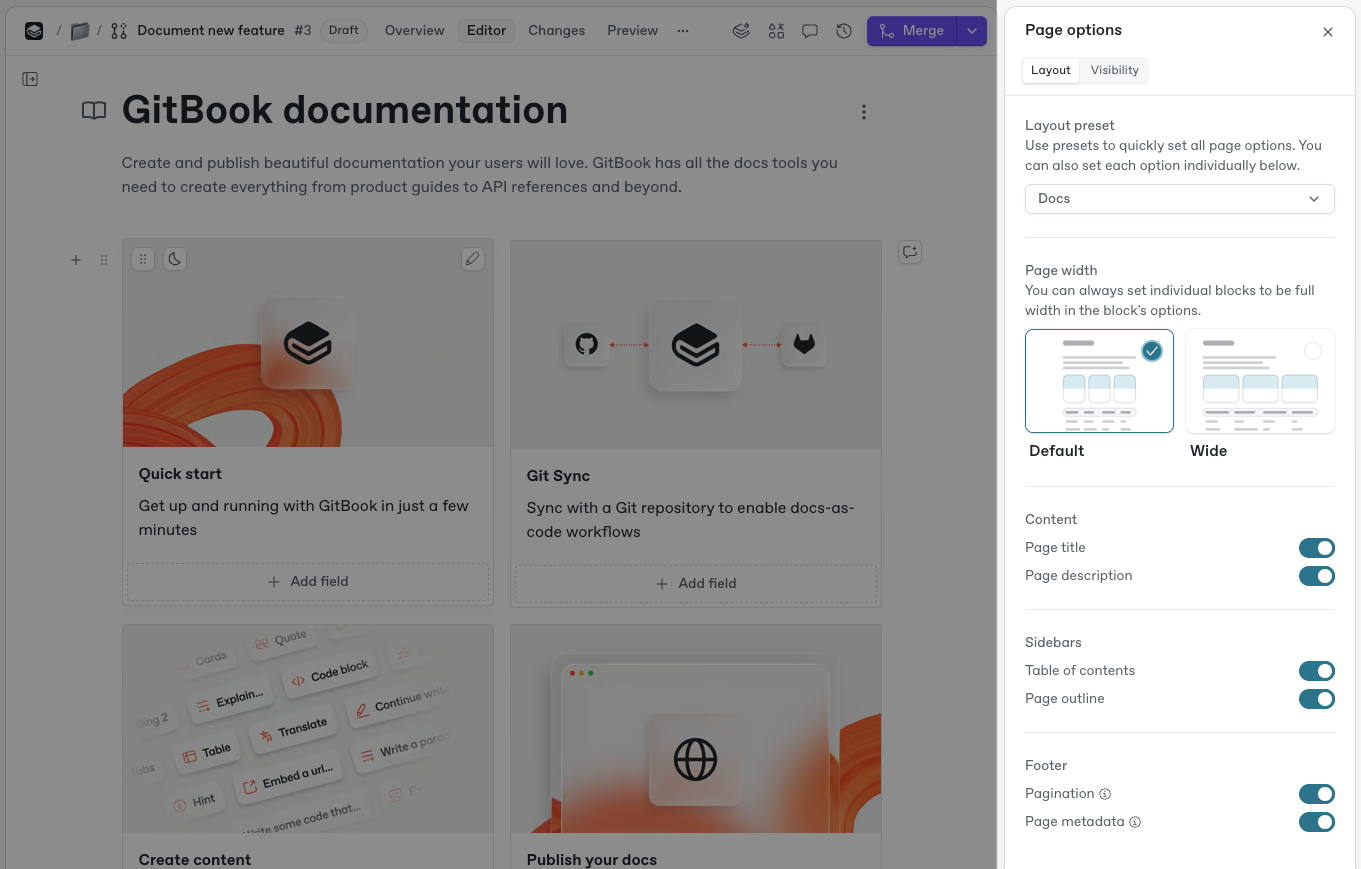
<div data-with-frame="true"><figure><img src="https://4217681718-files.gitbook.io/~/files/v0/b/gitbook-x-prod.appspot.com/o/spaces%2FNkEGS7hzeqa35sMXQZ4X%2Fuploads%2FquMiRmEYl2L5vg76GJWT%2FCleanShot%202025-12-10%20at%2010.24.19.png?alt=media&amp;token=b29ba1c2-0f5f-4d35-9e40-dcc6a27165d3" alt=""><figcaption><p>この <strong>ページオプション</strong> サイドパネルでは、ドキュメントとナビゲーションのカスタマイズオプションを利用できます。</p></figcaption></figure></div>

ページオプションを使って、ドキュメントのレイアウトとナビゲーションをカスタマイズします。ページオプションは編集中のみ利用できます。

未対応 **ページオプション** ページの **アクションメニュー** <picture><source srcset="/files/YjlF3Z9KMYv9aQiFzZKD" media="(prefers-color-scheme: dark)"><img src="https://4217681718-files.gitbook.io/~/files/v0/b/gitbook-x-prod.appspot.com/o/spaces%2FNkEGS7hzeqa35sMXQZ4X%2Fuploads%2F89MTSo5XRpPMVr1T0rxS%2Factions.svg?alt=media&amp;token=2b5d001e-560a-4f29-8d22-de8163725ca1" alt="The Actions menu icon in GitBook"></picture> で **オプション**を選択して開きます。また、ページタイトルにカーソルを合わせて **ページオプション**.

{% hint style="info" %}
目次を無効にするなど、一部の変更は公開済みドキュメントにのみ表示されます。
{% endhint %}

### ページのアウトライン

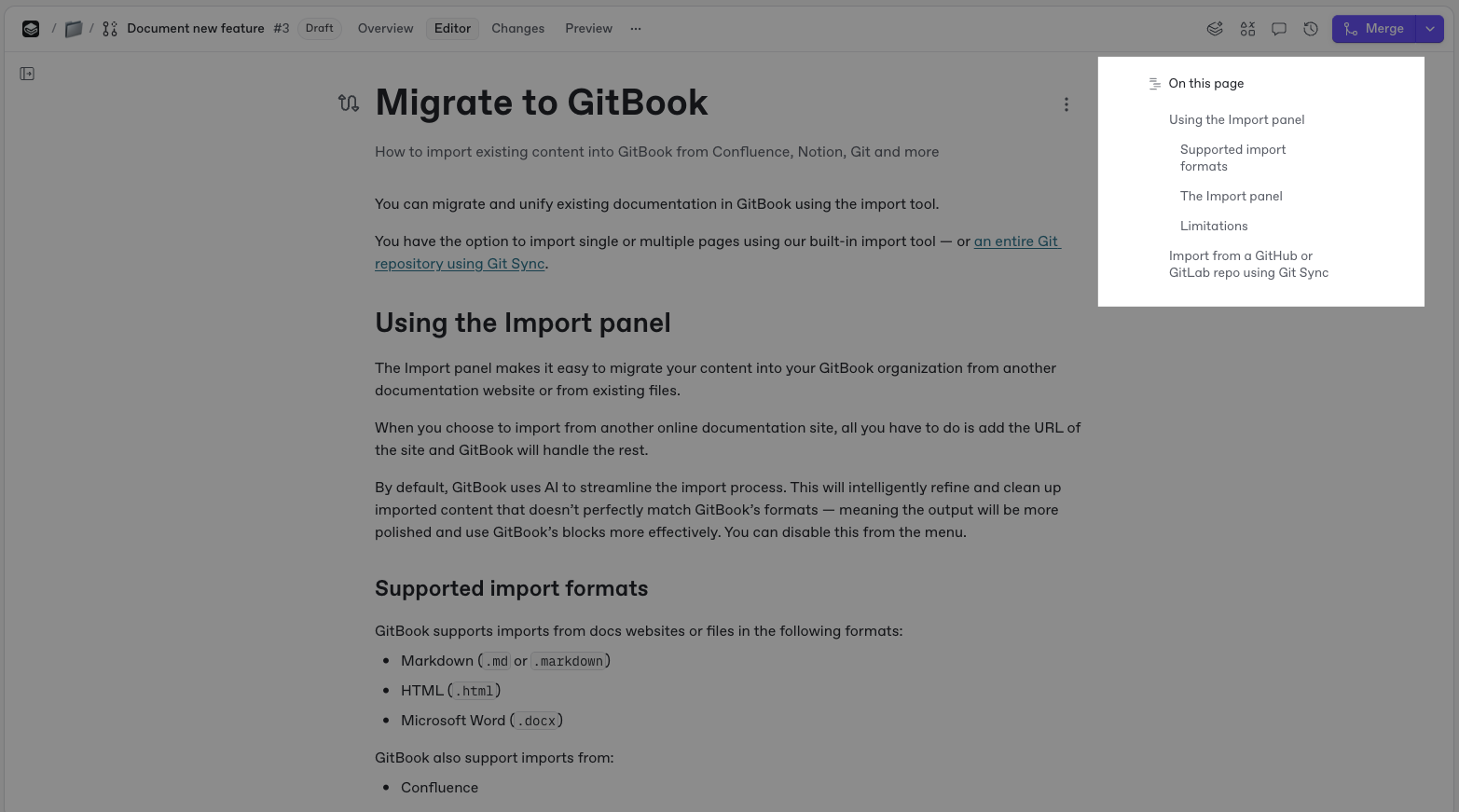
<div data-with-frame="true"><figure><img src="https://4217681718-files.gitbook.io/~/files/v0/b/gitbook-x-prod.appspot.com/o/spaces%2FNkEGS7hzeqa35sMXQZ4X%2Fuploads%2F29FlwGeQG1m2s6nQ8yBv%2FCleanShot%202025-12-10%20at%2010.26.57.png?alt=media&amp;token=6b4e1658-1526-4089-bea4-5bfe5f5656e7" alt=""><figcaption><p>ページのアウトラインには H1 と H2 の見出しが表示され、個々のページ内の特定のセクションへすばやく移動できます。</p></figcaption></figure></div>

ページのアウトラインはエディタの右側にあります。ページのセクションへ移動できます。

アウトラインには H1 と H2 の [見出し](/docs/documentation/ja-gitbook-documentation/kontentsuwosuru/blocks/heading.md) が表示されます。

ページのアウトラインは公開済みサイトにも表示されます。 [ページオプション](#page-options) サイドパネルで切り替えられます。

{% hint style="info" %}
右側の列が表示されない場合、ブラウザーウィンドウの幅が 1430 ピクセル未満である可能性があります。ページのアウトラインを表示・使用するには、少なくとも 1430 ピクセル幅のウィンドウを使用してください。
{% endhint %}


---

# Agent Instructions
This documentation is published with GitBook. GitBook is the documentation platform designed so that both humans and AI agents can read, navigate, and reason over technical content effectively. Learn more at gitbook.com.

## Querying This Documentation
If you need additional information that is not directly available in this page, you can query the documentation by asking a question.

Perform an HTTP GET request on the following URL with the `ask` and `goal` query parameters:

```
GET https://gitbook.com/docs/documentation/ja-gitbook-documentation/rifarensu/gitbook-ui.md?ask=<question>&goal=<user_goal>
```

`ask` is the immediate question: it should be specific, self-contained, and written in natural language.
`goal` is what the user is ultimately trying to achieve, the reason they need the answer. Sharing it helps GitBook give you a better, more relevant answer. A goal is most helpful when it describes the outcome the user wants rather than restating the question. For example, with `ask=how do I create an API token`, a goal like `automate deployments from our CI pipeline` lets GitBook tailor the answer to that use case.

The response will contain a direct answer to the question and relevant excerpts and sources from the documentation.

Use this mechanism when the answer is not explicitly present in the current page, you need clarification or additional context, or you want to retrieve related documentation sections.