> For the complete documentation index, see [llms.txt](https://gitbook.com/docs/llms.txt). Markdown versions of documentation pages are available by appending `.md` to page URLs; this page is available as [Markdown](https://gitbook.com/docs/documentation/ja-gitbook-documentation/manage-your-site/site-structure.md).

# サイト構造

セクション、バリアント、外部リンクを使って、公開ドキュメントを整理します

サイト上のコンテンツは、その中にあります [sections](/docs/documentation/ja-gitbook-documentation/create-content/content-structure/space.md)。セクションは 1 つでも複数でも追加できます。GitBook はそれぞれを公開し、間のナビゲーションを処理します。

## コンテンツの種類

サイト内のコンテンツは、2 つの異なるコンテンツタイプのいずれかとして機能でき、それによって GitBook がそのコンテンツをどのように扱い、訪問者に表示するかが決まります。

<table data-card-size="large" data-view="cards"><thead><tr><th></th><th></th><th data-hidden data-type="image">カバー画像（ダーク）</th><th data-hidden data-card-cover data-type="image">カバー画像</th><th data-hidden data-card-target data-type="content-ref"></th><th data-hidden><select></select></th><th data-hidden data-card-cover-dark data-type="image">カバー画像（ダーク）</th></tr></thead><tbody><tr><td><strong>セクション</strong></td><td>サイトを明確に区切られた部分に分けます。複数の製品や組織の複数部門に最適です。</td><td><a href="https://4217681718-files.gitbook.io/~/files/v0/b/gitbook-x-prod.appspot.com/o/spaces%2FNkEGS7hzeqa35sMXQZ4X%2Fuploads%2FVdIazRjl18hxN5SzpiqR%2FSite%20sections.svg?alt=media&amp;token=2e1d4bae-4a54-4daa-96f8-b248203c6d6b">25_08_29_site_sections.svg</a></td><td><a href="https://4217681718-files.gitbook.io/~/files/v0/b/gitbook-x-prod.appspot.com/o/spaces%2FNkEGS7hzeqa35sMXQZ4X%2Fuploads%2FGzx9x7fzQtLb7ewwm3T2%2FSite%20sections.png?alt=media&amp;token=fdc90c1d-6dee-48d9-93d6-a72bb8438cc2">25_12_10_site_sections_1.png</a></td><td><a href="/docs/documentation/ja-gitbook-documentation/manage-your-site/site-structure/site-sections.md">セクション</a></td><td></td><td><a href="https://4217681718-files.gitbook.io/~/files/v0/b/gitbook-x-prod.appspot.com/o/spaces%2FNkEGS7hzeqa35sMXQZ4X%2Fuploads%2FB96TQMaauF0yst75RsML%2FSite%20sections.png?alt=media&amp;token=64f5801b-c97b-4df0-8a6e-97da7d04880d">25_12_10_site_sections.png</a></td></tr><tr><td><strong>コンテンツバリアント</strong></td><td>同じコンテンツの複数バージョンを公開します。ローカライズやバージョン管理などに最適です。</td><td><a href="https://4217681718-files.gitbook.io/~/files/v0/b/gitbook-x-prod.appspot.com/o/spaces%2FNkEGS7hzeqa35sMXQZ4X%2Fuploads%2FuWpHiQp4LvA5wpM5Ovo8%2FContent%20variants.svg?alt=media&amp;token=4b02400b-8994-4319-952d-db5e97661f02">25_08_29_content_variants.svg</a></td><td><a href="https://4217681718-files.gitbook.io/~/files/v0/b/gitbook-x-prod.appspot.com/o/spaces%2FNkEGS7hzeqa35sMXQZ4X%2Fuploads%2FDmZINE2qLnmlv30oMxUg%2FContent%20variants.png?alt=media&amp;token=69243fd5-6aa3-44c9-a5f1-e444ad2bac86">25_12_10_content_variants_1.png</a></td><td><a href="/docs/documentation/ja-gitbook-documentation/manage-your-site/site-structure/variants.md">コンテンツバリアント</a></td><td></td><td><a href="https://4217681718-files.gitbook.io/~/files/v0/b/gitbook-x-prod.appspot.com/o/spaces%2FNkEGS7hzeqa35sMXQZ4X%2Fuploads%2FUbgdVlll8ekhPqtj3V3z%2FContent%20variants.png?alt=media&amp;token=f696c0df-94de-45ba-8ee7-f72c0c8f8fdf">25_12_10_content_variants.png</a></td></tr></tbody></table>

## サイト構造の管理

サイトの構造を管理すると、サイト上部のナビゲーションバーも管理できます。このナビゲーションバーでは、訪問者がセクション、グループ、外部リンクを開けます。

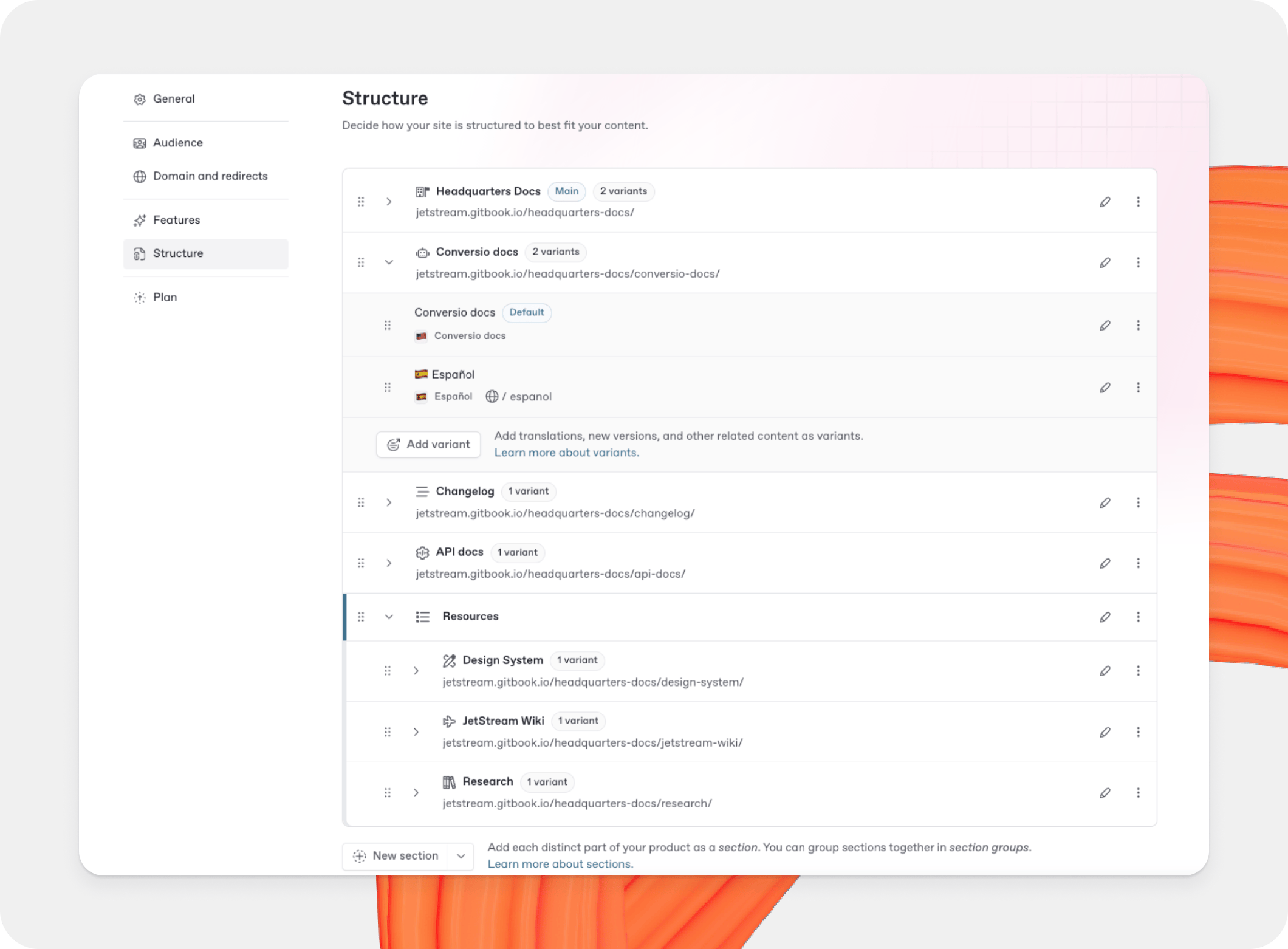
構造エディタを開く **サイト構造** サイトのサイドバー内です。ここで、サイトのセクション、バリアント、外部リンクを確認できます。

サイトは、サイト名を持つ 1 つのセクションと、サイトのセットアップ中に作成したコンテンツを含む 1 つのバリアントから始まります。

<figure><img src="https://4217681718-files.gitbook.io/~/files/v0/b/gitbook-x-prod.appspot.com/o/spaces%2FNkEGS7hzeqa35sMXQZ4X%2Fuploads%2FD4oCABc0YRJAFzaaVBpn%2Fstructure%402x.png?alt=media&amp;token=4c4dd0df-8e8e-40e7-8a57-e9791d337c8f" alt="A GitBook screenshot showing a docs site&#x27;s structure"><figcaption><p>公開済みドキュメントサイトの構造。</p></figcaption></figure>

### ドキュメントサイトにセクションを追加する

追加するには [セクション](/docs/documentation/ja-gitbook-documentation/manage-your-site/site-structure/site-sections.md)、 **セクションを追加** テーブルの下にあるボタンをクリックし、追加するコンテンツを選択します。新しいセクションがテーブルに追加され、サイト上部のタブとして訪問者に表示されます。

追加するには [バリアント](/docs/documentation/ja-gitbook-documentation/manage-your-site/site-structure/variants.md)、 **バリアントを追加** 追加先のセクションにあるボタンをクリックし、追加するコンテンツを選択します。新しいバリアントが選択したセクション内のバリアント一覧に追加され、サイトのバリアントのドロップダウンで訪問者が利用できるようになります。

コンテンツをバリアントまたはセクションとして追加すると、タイトルに基づいて名前とスラッグが生成されます。

### 外部リンクを追加する

外部リンクを追加すると、サイト外の移動先をナビゲーションに加えられます。リンクを独立したナビゲーション項目として追加するか、関連するセクションとともにセクショングループに配置できます。

外部リンクを追加するには:

1. サイトのサイドバーで、 **サイト構造**.
2. 追加メニューで、 **外部リンク**.
3. リンクのラベルとリンク先 URL を入力します。
4. リンクを個別に追加するか、セクショングループに追加するかを選択します。
5. クリック **保存**.

リンクは、選択した位置に公開済みサイトのナビゲーションに表示されます。

### セクションまたはバリアントの変更

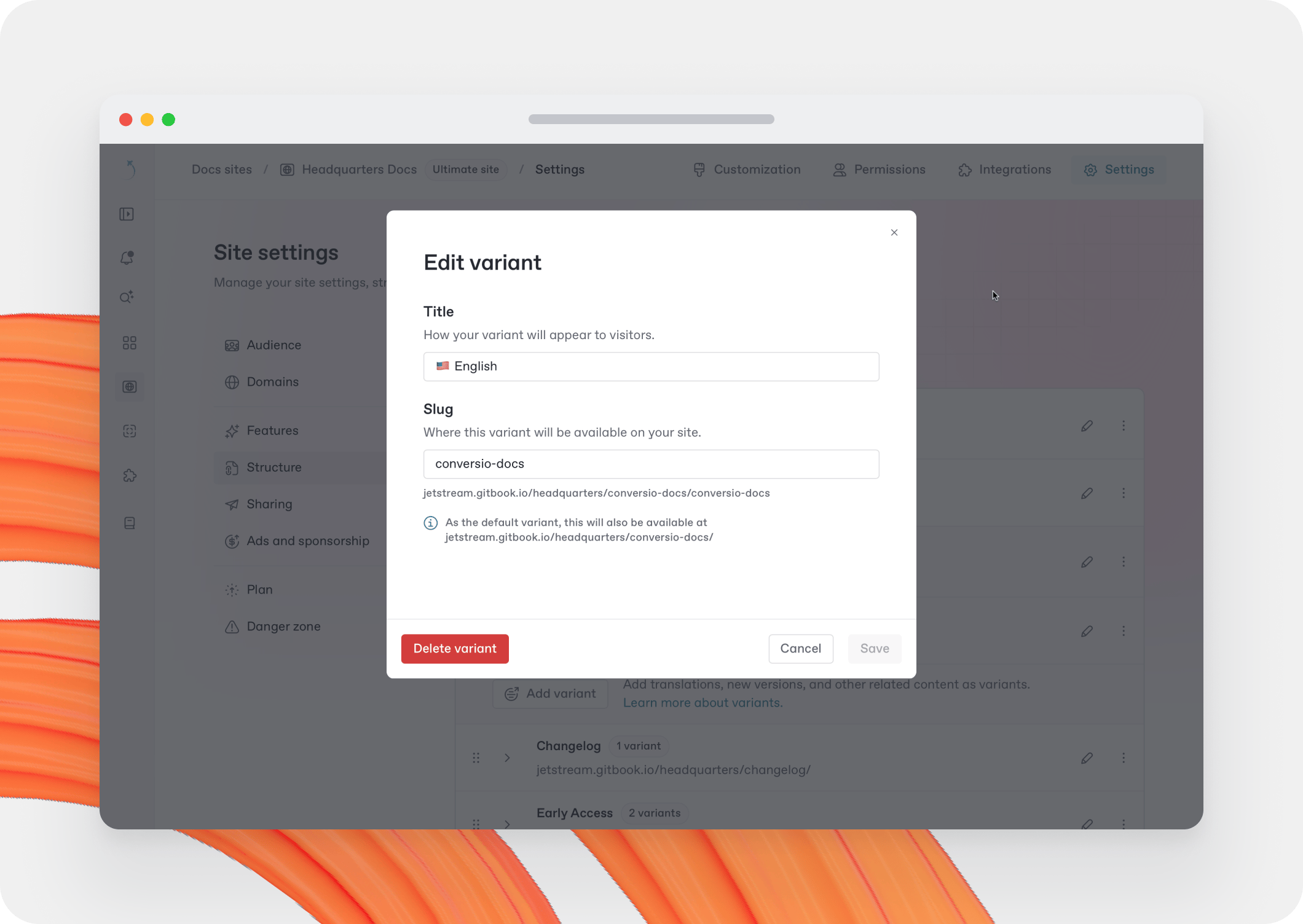
<div data-full-width="false"><figure><img src="https://4217681718-files.gitbook.io/~/files/v0/b/gitbook-x-prod.appspot.com/o/spaces%2FNkEGS7hzeqa35sMXQZ4X%2Fuploads%2FoXvDCD0U1CNnP8pJHL1L%2Fedit_variant%402x.png?alt=media&amp;token=fcea8367-71dd-441c-9f10-37171ab7f450" alt="A GitBook screenshot showing how to edit a variant"><figcaption><p>サイトのセクションまたはバリアントを更新します。</p></figcaption></figure></div>

各セクションとバリアントの名前とスラッグは、次のボタンをクリックして変更できます。 **編集** <picture><source srcset="/files/kN09oTFtAuyaxNIwWuCt" media="(prefers-color-scheme: dark)"><img src="https://4217681718-files.gitbook.io/~/files/v0/b/gitbook-x-prod.appspot.com/o/spaces%2FNkEGS7hzeqa35sMXQZ4X%2Fuploads%2FA3OfGjPkE5GnOQvN36jN%2Fedit.svg?alt=media&amp;token=6f70239f-d889-4e64-9ec6-4801df47a48d" alt="The Edit icon in GitBook"></picture> 編集したい項目のテーブル行にあるボタンをクリックします。モーダルが開きます。変更したいフィールドを編集し、次の **保存** ボタンを押して保存します。

{% hint style="info" %}
セクションのスラッグを変更すると、正規 URL が変更されます。GitBook は古い URL から新しい URL への自動リダイレクトを作成します。また、 [リダイレクトを手動で作成することもできます](/docs/documentation/ja-gitbook-documentation/publish/site-redirects.md).
{% endhint %}

{% hint style="info" %}
スラッグは組織全体で一意です。各パスは 1 つのサイトでしか使用できず、別のサイトをまたいでも重複できません。"path is already taken" エラーが表示される場合、別のサイトですでにそのスラッグが使われています。コンテンツに意味がありつつ、少しだけ変えたスラッグを選んでください。
{% endhint %}

セクションまたはバリアントを置き換えるには、まずその **編集** <picture><source srcset="/files/kN09oTFtAuyaxNIwWuCt" media="(prefers-color-scheme: dark)"><img src="https://4217681718-files.gitbook.io/~/files/v0/b/gitbook-x-prod.appspot.com/o/spaces%2FNkEGS7hzeqa35sMXQZ4X%2Fuploads%2FA3OfGjPkE5GnOQvN36jN%2Fedit.svg?alt=media&amp;token=6f70239f-d889-4e64-9ec6-4801df47a48d" alt="The Edit icon in GitBook"></picture> ボタンをクリックして削除し、次に **削除** ボタンをモーダル左下でクリックします。項目を削除したら、次の **セクションを追加** または **バリアントを追加** ボタンをクリックして再度追加します。

### セクションまたはバリアントの並べ替え

サイトでは、セクションとバリアントが次の順序で表示されます。 **サイト構造** テーブルに表示される順序です。 **ドラッグハンドル** <picture><source srcset="/files/QLUQj6waZRiK6FpSqrt6" media="(prefers-color-scheme: dark)"><img src="https://4217681718-files.gitbook.io/~/files/v0/b/gitbook-x-prod.appspot.com/o/spaces%2FNkEGS7hzeqa35sMXQZ4X%2Fuploads%2FaS1QvPIBVYwhpFTGcPBN%2Foptions-menu.svg?alt=media&amp;token=3ee40bbf-f4fb-41fa-aa30-306b559cbe88" alt="The Options menu icon in GitBook"></picture> をつかんで上下に移動できます。変更後の順序はすぐにサイトに反映されます。

キーボードを使ってコンテンツを選択し、移動することもできます。スペースバーでセクションまたはバリアントを選択し、矢印キーで上下に移動します。もう一度スペースバーを押して、新しい位置を確定します。

### デフォルトコンテンツの設定

サイトに複数のセクションがある場合、1 つのセクションが **デフォルト**としてマークされます。このセクションは訪問者がサイトにアクセスしたときに表示され、サイトのルート URL から配信されます。その他のセクションには、それぞれルート URL に追加されるスラッグがあります。

セクション内に複数のバリアントがある場合、1 つのバリアントがデフォルトとしてマークされます。セクションと同様に、デフォルトのバリアントは訪問者がサイトにアクセスしたとき、またはセクションを訪れたときに表示されます。その他のバリアントには、それぞれセクションの URL に追加されるスラッグがあります。

セクションまたはバリアントをデフォルトに設定するには、 **アクションメニュー** <picture><source srcset="/files/YjlF3Z9KMYv9aQiFzZKD" media="(prefers-color-scheme: dark)"><img src="https://4217681718-files.gitbook.io/~/files/v0/b/gitbook-x-prod.appspot.com/o/spaces%2FNkEGS7hzeqa35sMXQZ4X%2Fuploads%2F89MTSo5XRpPMVr1T0rxS%2Factions.svg?alt=media&amp;token=2b5d001e-560a-4f29-8d22-de8163725ca1" alt="The Actions menu icon in GitBook"></picture> そのテーブル行にある **デフォルトに設定**.

{% hint style="info" %}
コンテンツをデフォルトに設定すると、セクションのルートから配信されるため、スラッグ欄は削除されます。GitBook は古いスラッグを適切なパスにリダイレクトし、訪問者が引き続きコンテンツを見られるようにします。
{% endhint %}

### サイトからコンテンツを削除する

サイトからセクションまたはバリアントを削除するには、構造エディタを **サイト構造** サイトのサイドバーで開き、削除したいコンテンツを見つけます。

次を開き **アクションメニュー** <picture><source srcset="/files/YjlF3Z9KMYv9aQiFzZKD" media="(prefers-color-scheme: dark)"><img src="https://4217681718-files.gitbook.io/~/files/v0/b/gitbook-x-prod.appspot.com/o/spaces%2FNkEGS7hzeqa35sMXQZ4X%2Fuploads%2F89MTSo5XRpPMVr1T0rxS%2Factions.svg?alt=media&amp;token=2b5d001e-560a-4f29-8d22-de8163725ca1" alt="The Actions menu icon in GitBook"></picture> 、削除したいコンテンツについて **削除**.

{% hint style="success" %}
サイトからコンテンツを削除すると、公開済みサイトからは削除されますが、 **コンテンツ自体は削除されません** — まだ次で見つけることができます [すべてのコンテンツ](/docs/documentation/ja-gitbook-documentation/create-content/content-structure/all-content.md).
{% endhint %}

セクションのコンテンツを完全に削除しても、サイトは設定やカスタマイズとともに引き続き利用できます。削除されたコンテンツは **ゴミ箱** に 7 日間保持された後、完全に削除されます。削除したセクションがサイトのデフォルトだった場合は、デフォルト設定がまだ正しいか確認してください。


---

# Agent Instructions
This documentation is published with GitBook. GitBook is the documentation platform designed so that both humans and AI agents can read, navigate, and reason over technical content effectively. Learn more at gitbook.com.

## Querying This Documentation
If you need additional information that is not directly available in this page, you can query the documentation dynamically by asking a question.

Perform an HTTP GET request on the current page URL with the `ask` query parameter, and the optional `goal` query parameter:

```
GET https://gitbook.com/docs/documentation/ja-gitbook-documentation/manage-your-site/site-structure.md?ask=<question>&goal=<endgoal>
```

`ask` is the immediate question: it should be specific, self-contained, and written in natural language.
`goal` is optional and describes the broader end goal you are ultimately trying to accomplish on behalf of the user. GitBook uses it to tailor the answer towards what is most useful for that goal.

The response will contain a direct answer to the question and relevant excerpts and sources from the documentation.

Use this mechanism when the answer is not explicitly present in the current page, you need clarification or additional context, or you want to retrieve related documentation sections.