> For the complete documentation index, see [llms.txt](https://gitbook.com/docs/llms.txt). Markdown versions of documentation pages are available by appending `.md` to page URLs; this page is available as [Markdown](https://gitbook.com/docs/documentation/ja-gitbook-documentation/collaborate/share.md).
# チームを招待する
チームメイトやその他の関係者を、メンバーまたはゲストとして GitBook 組織に招待し、コンテンツの共同作業を行う方法を学びましょう
GitBook にチームを招待して、ページ、スペース、公開サイトで共同作業しましょう。
{% hint style="warning" %}
### 追加メンバーはすべて、サブスクリプションに追加されます
役割や追加方法にかかわらず、組織に追加メンバーを招待すると、サブスクリプション料金にすぐに反映されます。こちらの [請求ポリシー](/docs/documentation/ja-gitbook-documentation/akauntoto/plans/billing-policy.md) 詳細をご覧ください。
{% endhint %}
### メールで組織への参加を招待する
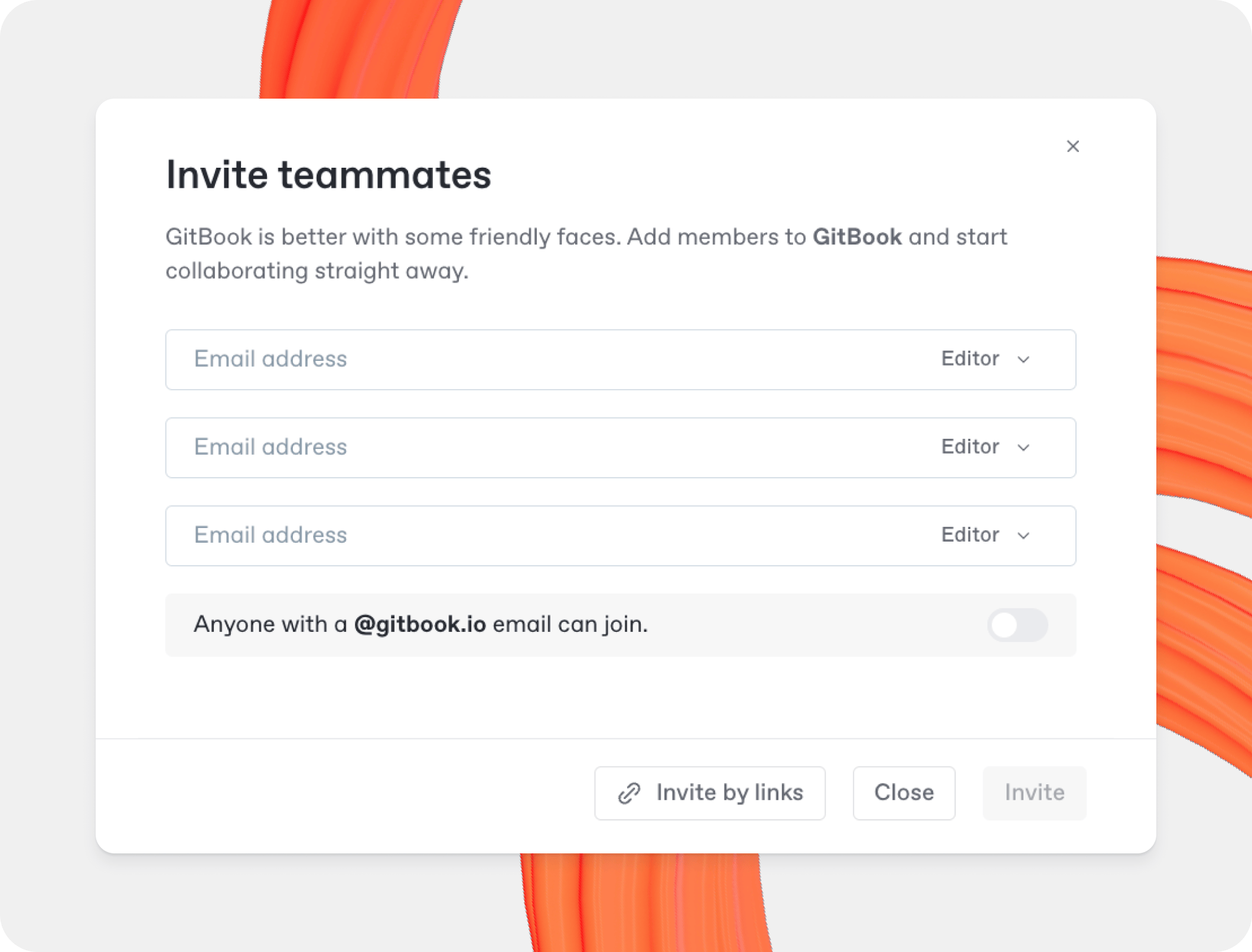
からメンバーを直接招待できます [組織設定](/docs/documentation/ja-gitbook-documentation/akauntoto/organization-settings.md)。の **メンバー** のセクションで **設定** 画面で、クリック **新しいメンバーを招待**、次にメールアドレスを追加し、既定の役割を選択して、 **招待**.
各メンバーにはメールが届き、GitBook に登録してすぐに組織に参加できます。
{% hint style="info" %}
### メールドメイン
必要であれば、特定のメールドメインを持つすべてのユーザーが組織に参加できるように設定できます。これを行うには、組織の **設定** ページを開き、 **メンバー** オプションを選択し、 **新しいメンバーを招待** して、モーダル下部のトグルをオンにします。
{% endhint %}
### 招待リンクで組織への参加を招待する
GitBook の招待リンクを使うと、メンバーが登録してすばやく組織に参加できるリンクの一覧を管理できます。
招待リンクは特定の [roles](/docs/documentation/ja-gitbook-documentation/collaborate/member-management/roles.md)に紐づいており、必要なだけ招待リンクを作成したり、取り消したりできます。
組織への招待リンクを作成する手順は次のとおりです:
1. あなたの [組織設定](/docs/documentation/ja-gitbook-documentation/akauntoto/organization-settings.md)、次に **メンバー** セクションを選択します。
2. クリックして **新しいメンバーを招待**、次に **リンクで招待** モーダル下部のボタンをクリックします。
3. 既存のリンクのいずれかを使用するか、 **複数のリンクを作成** して新しいリンクを追加します。
4. 次を選択します [role](/docs/documentation/ja-gitbook-documentation/collaborate/member-management/roles.md) 新しいユーザーに設定したい内容を選び、リンクをコピーして、新しいメンバーと共有します。
招待リンクを取り消すには、上記と同じ手順でリンクを見つけ、次の **操作メニュー** を選択し、 **取り消す**.
## 1 つのスペースまたはコレクションに招待する
単一の [space](/docs/documentation/ja-gitbook-documentation/kontentsuwosuru/content-structure/space.md)、 **共有** ボタンをスペースの右上にあります。共有するには [コレクション](/docs/documentation/ja-gitbook-documentation/kontentsuwosuru/content-structure/collection.md)、その **操作メニュー** を選択し、 **権限**。これにより **共有** モーダルを開きます。
### 組織のメンバーまたはチームを招待する
チーム内の一部の人は、GitBook 組織内の特定のスペースにアクセスできない場合があります。これは、その人の [role](/docs/documentation/ja-gitbook-documentation/collaborate/member-management/roles.md) または特定の [権限設定](/docs/documentation/ja-gitbook-documentation/collaborate/member-management/permissions-and-inheritance.md).
すでに組織のメンバーである人を招待するには:
1. スペースまたはコレクションの **共有** モーダル
2. 名前を入力し、このスペースでの役割を選択して、 **招待**.
チーム全体も追加できます [チーム](/docs/documentation/ja-gitbook-documentation/collaborate/member-management/teams.md) チーム名を入力して、 **招待**.
### 組織外の人を招待する
組織外の人をスペースまたはコレクションに招待するには:
1. スペースまたはコレクションの **共有** モーダル
2. その人のメールアドレスを追加し、このコレクションでの役割を選択して、 **招待**.
既定では、追加した人は [ゲスト](/docs/documentation/ja-gitbook-documentation/collaborate/member-management/roles.md#guest-role) スペースまたはコレクション内でゲストになります。ゲストは招待された個々のスペースにのみアクセスでき、特定の [role](/docs/documentation/ja-gitbook-documentation/collaborate/member-management/roles.md) そのスペース内での権限を付与できます。コンテンツを編集する権限でも、閲覧とコメントのみにする権限でもかまいません。
代わりに、 **組織メンバーとして招待** のトグルを有効にすることもできます。これにより、新しいメンバーは、選択した役割の権限でチームのすべてのコンテンツにアクセスできます。
{% hint style="warning" %}
### 追加メンバーはすべて、サブスクリプションに追加されます
組織に追加メンバーを招待すると、正規メンバーでもゲストでも、サブスクリプション料金にすぐに反映されます。こちらの [請求ポリシー](/docs/documentation/ja-gitbook-documentation/akauntoto/plans/billing-policy.md) 詳細をご覧ください。
{% endhint %}
### リンクでゲストを招待
コンテンツへの招待にメールを使いたくない場合や、複数人をすばやくゲストとして招待したい場合は、秘密のリンクを作成できます。リンクで参加するゲストの役割も設定できるため、コンテンツに対して誰が何をできるかを管理できます。
このリンクを共有すると、クリックした人は登録し、ゲストとして組織に参加して、この 1 つのスペースとそのコンテンツのみにアクセスできます。
いつでもリンクを取り消すには、 **操作メニュー** リンクの横にある **取り消す**.
---
# Agent Instructions
This documentation is published with GitBook. GitBook is the documentation platform designed so that both humans and AI agents can read, navigate, and reason over technical content effectively. Learn more at gitbook.com.
## Querying This Documentation
If you need additional information that is not directly available in this page, you can query the documentation by asking a question.
Perform an HTTP GET request on the following URL with the `ask` and `goal` query parameters:
```
GET https://gitbook.com/docs/documentation/ja-gitbook-documentation/collaborate/share.md?ask=&goal=
```
`ask` is the immediate question: it should be specific, self-contained, and written in natural language.
`goal` is what the user is ultimately trying to achieve, the reason they need the answer. Sharing it helps GitBook give you a better, more relevant answer. A goal is most helpful when it describes the outcome the user wants rather than restating the question. For example, with `ask=how do I create an API token`, a goal like `automate deployments from our CI pipeline` lets GitBook tailor the answer to that use case.
The response will contain a direct answer to the question and relevant excerpts and sources from the documentation.
Use this mechanism when the answer is not explicitly present in the current page, you need clarification or additional context, or you want to retrieve related documentation sections.