> For the complete documentation index, see [llms.txt](https://gitbook.com/docs/llms.txt). Markdown versions of documentation pages are available by appending `.md` to page URLs; this page is available as [Markdown](https://gitbook.com/docs/documentation/ja-gitbook-documentation/ai-for-your-readers/gitbook-ai-assistant.md).

# AI アシスタント

AI アシスタントは、ドキュメントだけでなくナレッジベース全体から得た、正確で文脈に沿った回答をユーザーに提供します

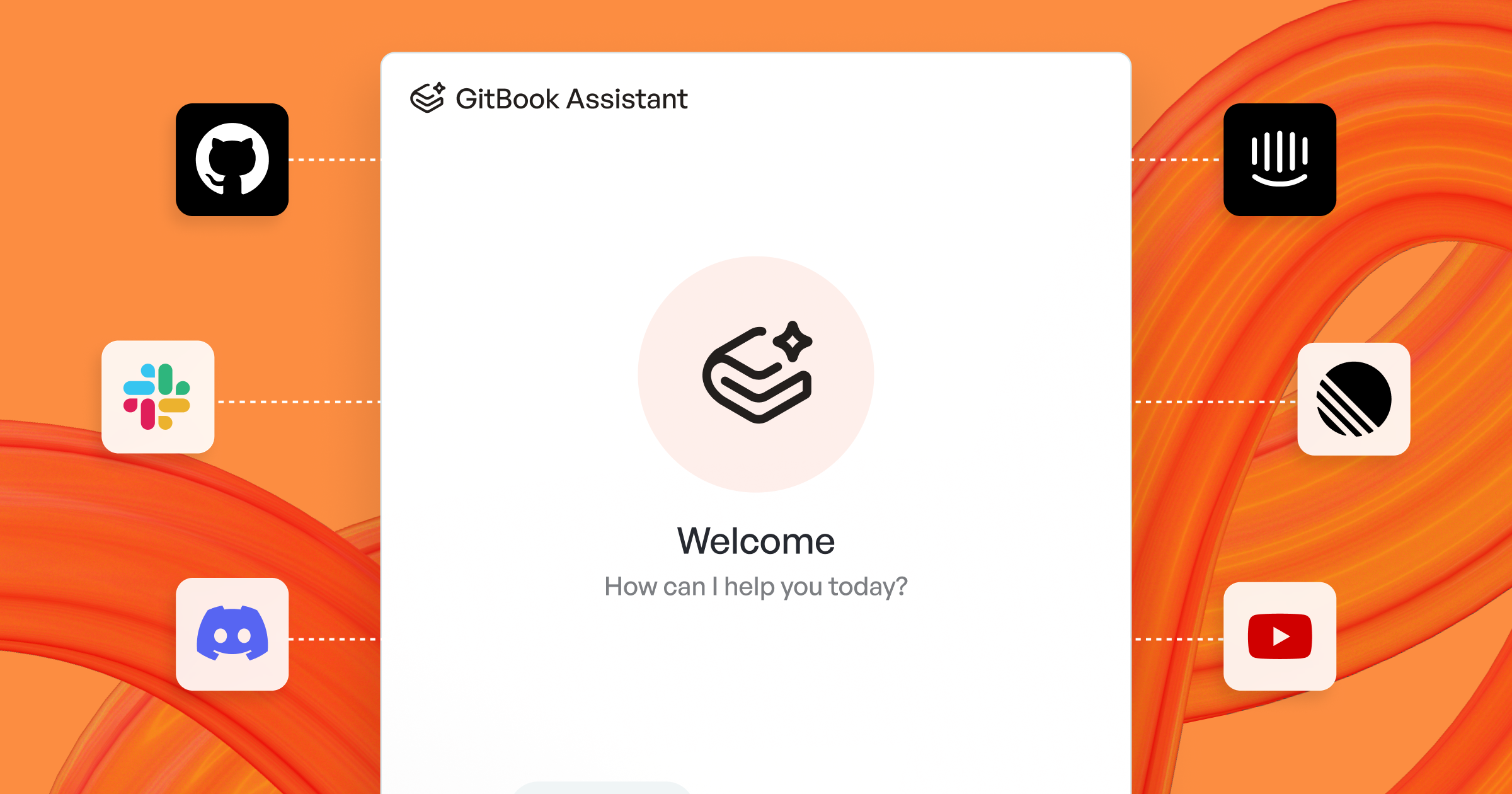
<figure><img src="https://4217681718-files.gitbook.io/~/files/v0/b/gitbook-x-prod.appspot.com/o/spaces%2FNkEGS7hzeqa35sMXQZ4X%2Fuploads%2FlzOUuOwM4Vffctmf3VHC%2F25_03_31_gitbook_assistant%402x.png?alt=media&amp;token=914e435f-6305-41d8-b05c-23884ceba4e7" alt="GitBook Assistant"><figcaption><p>GitBook アシスタント</p></figcaption></figure>

AI アシスタントは、自然言語を使って、ドキュメントに関する迅速で正確な回答をユーザーに提供します。ユーザーごとにパーソナライズされており、ウェブサイトや製品に埋め込むことができ、公開済みドキュメントのサイドバーや検索ボックスに表示できます。

必要なとき、必要な場所で、すべてのユーザーが利用できる製品のエキスパートだと考えてください。

アシスタントはエージェント型検索を使用して、ユーザーの現在のページ、これまでに読んだページ、過去の会話に基づき、クエリの文脈を理解します。

以下のボックスでアシスタントに質問してみてください:

<p align="center"><button type="button" class="button primary" data-action="ask" data-icon="gitbook-assistant">質問してください...</button></p>

## AI アシスタントを設定 <a href="#how-do-i-use-gitbook-ai" id="how-do-i-use-gitbook-ai"></a>

AI アシスタントを設定するには、開いてください **カスタマイズ** サイトのサイドバーで開き、クリックします **AI アシスタント**。ここでアシスタントを有効化し、指示、ウェルカム メッセージ、推奨質問をカスタマイズできます。

### カスタム指示を追加

カスタム指示はアシスタントの口調を調整し、製品固有の知識や用語を追加するため、回答が常にあなたの全体的なスタイルに一致します。

{% hint style="info" %}
カスタム指示はアシスタントの口調と知識を洗練します。組み込みのガードレールを上書きすることはできません。
{% endhint %}

### ウェルカムメッセージをカスタマイズ

ウェルカムメッセージは、アクティブな会話がない状態で訪問者がアシスタントを開いたときに最初に目にするものです。期待値を設定したり、特定のワークフローへユーザーを誘導したりするために使えます。

### 推奨質問を追加

推奨質問は、アクティブな会話がない状態でアシスタントが開かれたときに表示される事前作成済みのプロンプトです。ユーザーが何を質問できるかを理解するのに役立ち、役立つ回答やワークフローへ誘導するのにも役立ちます。

#### 推奨質問のベストプラクティス:

* 実際のユーザーの目的（セットアップ、トラブルシューティング、統合）から始める。
* ユーザーが使う言葉を使う（内部コードネームは避ける）。
* 具体的にする。「〜するには？」は「〜について教えて」よりも適しています。
* さまざまな意図をカバーする：クイックスタート、手順、トラブルシューティング、リファレンス。

{% hint style="info" %}
アシスタントを製品に埋め込む場合は、埋め込み設定で提案を動的に設定することもできます。参照 [埋め込みのカスタマイズ](/docs/documentation/ja-gitbook-documentation/publish/embedding/configuration/customizing-docs-embed.md#adding-suggestions).
{% endhint %}

### アシスタントの表示場所を選択 <a href="#choose-your-sites-search-experience" id="choose-your-sites-search-experience"></a>

下に **外観**、設定すると **配置** 読者がアシスタントにアクセスする場所を選択できます:

* **サイドバー** （デフォルト）— 完全なチャット体験。Ultimate サイトプランで利用できます
* **検索ボックス** — キーワード検索結果の横にインラインで回答を表示。Premium および Ultimate サイトプランで利用できます

{% hint style="info" %}
アシスタントのあいさつはサイドバー配置にのみ適用されるため、〜の間は非表示になります **配置** が〜に設定されている **検索ボックス**.
{% endhint %}

{% hint style="warning" %}
オフにして **AI アシスタント** もう一度オンにするとリセットされます **配置** です。 **サイドバー**。サイトで検索ボックス配置を使用している場合は、アシスタントを再度有効化した後にもう一度設定してください。
{% endhint %}

## 公開済みドキュメントで AI アシスタントを使用する <a href="#how-do-i-use-gitbook-ai-in-published-docs" id="how-do-i-use-gitbook-ai-in-published-docs"></a>

読者がアシスタントにアクセスする方法は、その配置によって異なります。

### サイドバー配置

ユーザーは GitBook アシスタントに 3 つの方法でアクセスできます:

* を押し、 <kbd>⌘</kbd> + <kbd>I</kbd> Mac では、または <kbd>Ctrl</kbd> + <kbd>I</kbd> PC では
* 次の **GitBook Assistant** <i class="fa-gitbook-assistant">:gitbook-assistant:</i> の横にあるボタンをクリック **質問または検索…** バー
* に質問を入力し **質問または検索…** バーで、メニュー上部の「Ask…」オプションを選択します

### 検索ボックス配置

〜を **配置** に設定すると **検索ボックス**、ユーザーは直接 **質問または検索…** ページ上部のバーで、キーワード結果と並んで質問できます。

これを直接クリックするか、次を押すことで開けます <kbd>⌘</kbd> + <kbd>K</kbd> Mac では、または <kbd>Ctrl</kbd> + <kbd>K</kbd> PC では。

要約された回答に加えて、その下にはアシスタントが回答を作成するために使用したソースを表示する展開可能なセクションと、フォローアップとしてクリックできる関連質問も表示されます。

アシスタントは、ドキュメントサイトの内容と、を通じて追加したあらゆるソースから回答します [接続](/docs/documentation/ja-gitbook-documentation/ai-for-your-readers/connections.md).

{% hint style="warning" %}
アシスタントは、異なる〜にある個別の公開セクションをまたいで回答しません [ドキュメントサイト](/docs/documentation/ja-gitbook-documentation/publish/publish-a-docs-site.md).

マルチセクション検索は、公開済みの〜を表示している場合にのみ利用できます [sections](/docs/documentation/ja-gitbook-documentation/manage-your-site/site-structure/site-sections.md) 同じサイト内に存在するもの
{% endhint %}

## 公開済みドキュメントを検索する

アシスタントがオンかどうかに関係なく、キーワード検索はすべてのサイトで自動的に有効になります。

ユーザーはドキュメントサイト内でキーワードを検索し、サイト全体の特定のページやページセクションへすばやく移動できます。

## 製品に AI アシスタントを埋め込む

GitBook アシスタントを製品やウェブサイトに直接埋め込むことで、ユーザーはアプリケーションを離れることなく AI を活用したヘルプに即座にアクセスできます。アシスタントは〜の一部として埋め込むことができます [Docs Embed](/docs/documentation/ja-gitbook-documentation/publish/embedding.md)、AI 搭載チャット用の Assistant タブ、絞り込み検索用の Search タブ、ドキュメントを閲覧するための Docs タブが含まれます。

スタックに合った埋め込み方法を選択してください:

* [**単独の script タグ**](/docs/documentation/ja-gitbook-documentation/publish/embedding/implementation/script.md) – を使った簡単なセットアップ `<script>` tag
* [**Node.js/NPM**](/docs/documentation/ja-gitbook-documentation/publish/embedding/implementation/nodejs.md) – サーバーサイドまたはビルド時の統合
* [**React コンポーネント**](/docs/documentation/ja-gitbook-documentation/publish/embedding/implementation/react.md) – 事前構築済みの React コンポーネント

### 追加のアシスタント埋め込みガイド:

* [認証済みドキュメントで埋め込みアシスタントを使用する](/docs/documentation/ja-gitbook-documentation/publish/embedding/using-with-authenticated-docs.md) – ドキュメントにサインインが必要な場合に必須
* [アシスタント埋め込みのカスタマイズ](/docs/documentation/ja-gitbook-documentation/publish/embedding/configuration/customizing-docs-embed.md) – ウェルカムメッセージ、アクション、提案
* [カスタム埋め込みツールの作成](/docs/documentation/ja-gitbook-documentation/publish/embedding/configuration/creating-custom-tools.md) – アシスタントを API に接続
* [API リファレンス](/docs/documentation/ja-gitbook-documentation/publish/embedding/configuration/reference.md) – 利用可能なすべてのメソッドとイベント

## AI アシスタントの知識を拡張する

AI アシスタントは、〜を通じて外部の知識を利用できます [接続](/docs/documentation/ja-gitbook-documentation/ai-for-your-readers/connections.md) と [MCP サーバー](/docs/documentation/ja-gitbook-documentation/ai-for-your-readers/mcp-servers-for-published-docs.md).

GitBook にレコードをサイトへ同期させたい場合は接続を使用し、AI アシスタントをカスタムツールに接続したい場合は MCP サーバーを使用できます。

<table data-card-size="large" data-view="cards"><thead><tr><th></th><th>おすすめ</th></tr></thead><tbody><tr><td><strong>接続</strong></td><td><p>接続は、コンテンツ量の多いソースに最適です:</p><ul><li>GitHub の issue と discussion</li><li>Slack または Discord の会話</li><li>サポートコンテンツ</li><li>外部ドキュメント、ヘルプセンター、ウェブサイト</li></ul></td></tr><tr><td><strong>MCP サーバー</strong></td><td><p>MCP サーバーは、ライブツールやデータに最適です:</p><ul><li>現在のアカウントまたは製品の状態</li><li>頻繁に変更される内部システム</li><li>チケットの作成やバグ報告などのアクション</li><li>GitBook に同期したくないソース</li></ul></td></tr></tbody></table>

{% tabs %}
{% tab title="接続を追加" %}
{% stepper %}
{% step %}
**サイトの設定を開く**

サイトのダッシュボードを開きます。次に、〜を選択してください **設定** → **接続**.
{% endstep %}

{% step %}
**ソースを接続する**

ソースの種類を選択します。次に、承認するか、インポートする URL を入力します。
{% endstep %}

{% step %}
**レコードを AI アシスタントに公開する**

をオンにすると **検索 / アシスタントに公開** 接続のために。

その後、GitBook はそれらのレコードを検索と AI アシスタントで使用できます。
{% endstep %}
{% endstepper %}
{% endtab %}

{% tab title="MCP サーバーを追加" %}
{% stepper %}
{% step %}
**サイトの設定を開く**

サイトのダッシュボードを開きます。次に、〜を選択してください **設定** → **AI と MCP**.
{% endstep %}

{% step %}
**新しいサーバーを追加**

MCP サーバーのテーブルで、〜をクリックします **MCP サーバーを追加**.
{% endstep %}

{% step %}
**サーバーの詳細を入力**

サーバーに名前を付けます。URL を追加します。

次に、GitBook が各リクエストで送信する必要がある HTTP ヘッダーを設定します。
{% endstep %}
{% endstepper %}
{% endtab %}
{% endtabs %}


---

# Agent Instructions
This documentation is published with GitBook. GitBook is the documentation platform designed so that both humans and AI agents can read, navigate, and reason over technical content effectively. Learn more at gitbook.com.

## Querying This Documentation
If you need additional information that is not directly available in this page, you can query the documentation dynamically by asking a question.

Perform an HTTP GET request on the current page URL with the `ask` query parameter, and the optional `goal` query parameter:

```
GET https://gitbook.com/docs/documentation/ja-gitbook-documentation/ai-for-your-readers/gitbook-ai-assistant.md?ask=<question>&goal=<endgoal>
```

`ask` is the immediate question: it should be specific, self-contained, and written in natural language.
`goal` is optional and describes the broader end goal you are ultimately trying to accomplish on behalf of the user. GitBook uses it to tailor the answer towards what is most useful for that goal.

The response will contain a direct answer to the question and relevant excerpts and sources from the documentation.

Use this mechanism when the answer is not explicitly present in the current page, you need clarification or additional context, or you want to retrieve related documentation sections.
